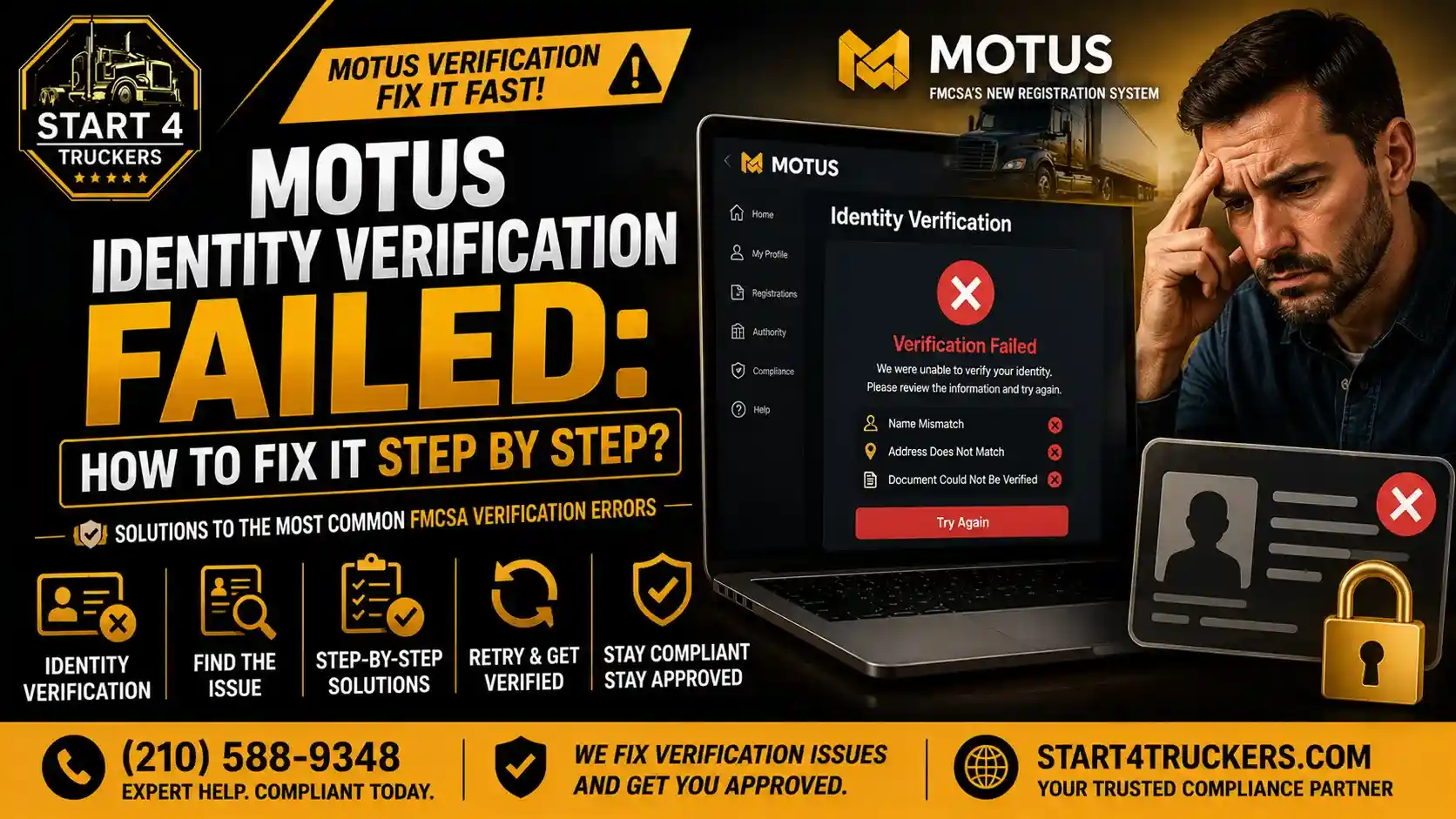
You sat down to complete your FMCSA registration through the new Motus platform. You created your Login.gov account. You uploaded your ID. You answered the verification questions. And then it happened.
MOTUS identity verification failed.
No clear explanation. No obvious next step. Just a failed status and a registration process that is now completely stalled. This is one of the most common problems carriers, brokers, and owner-operators run into when migrating to or registering through Motus in 2026. It feels like a dead end. It is not.
This guide gives you a complete, step-by-step breakdown of exactly why MOTUS identity verification fails, what each specific error means, and precisely what you need to do to resolve it so you can get your FMCSA registration back on track without losing days or weeks to confusion.
MOTUS Identity Verification Failed: Quick Answer
MOTUS identity verification fails when the information you provide during the Login.gov verification process does not match the records held by federal identity verification systems. The most common causes are name mismatches between your government ID and your FMCSA carrier profile, outdated or incorrect address information, document quality issues during the photo ID scan, or technical errors during the verification session. Most failures are fixable by correcting the underlying data discrepancy and restarting the verification process.
What Is MOTUS Identity Verification and Why Is It Required?
The Role of Identity Verification in Motus
Motus: The FMCSA’s new digital registration and compliance platform introduced mandatory identity verification as one of its most significant changes from the old Unified Registration System.
Under the old URS, anyone could submit a carrier registration using basic business information with no personal identity check. That created an enormous gap that chameleon carriers and fraudulent operators exploited for years by re-registering under new identities after enforcement actions.
Motus closed that gap. Now every carrier, broker, freight forwarder, and owner-operator must verify their personal identity before any FMCSA registration can be processed or claimed.
If you want to understand the full context of how Motus changed FMCSA registration, read our complete guide on the Motus FMCSA registration system.
How the Verification Process Works
Motus uses Login.gov, the U.S. federal government’s secure identity authentication platform, as its verification gateway. Every Motus user must:
- Create a Login.gov account using a personal email address
- Complete identity proofing using a government-issued photo ID
- Provide their Social Security Number for cross-referencing
- Pass biometric or document scan verification
- Link their verified Login.gov identity to their Motus account
When any step in this chain fails, the entire verification stops, and your FMCSA registration cannot proceed until the issue is resolved.
Who Must Complete Identity Verification?
Every individual who serves as a Motus Company Official must complete identity verification. This includes:
- Sole owners and owner-operators registering their own authority
- LLC managing members or corporate officers claiming a company USDOT number
- New carrier applicants applying for USDOT numbers and MC authority
- Existing carriers completing the URS to Motus transition
- Freight brokers establishing their Motus account
Learn more about who qualifies for the Company Official role and what that designation requires in our detailed guide on what a Motus Company Official is.
Most Common Reasons MOTUS Identity Verification Fails
Understanding why your verification failed is the first step to fixing it. Here are the most frequent causes and the specific symptoms that come with each.
1. Name Mismatch Between Government ID and FMCSA Records
This is the single most common cause of MOTUS identity verification failure.
Your legal name must be exactly consistent across three sources:
- Your government-issued photo ID
- Your Login.gov account
- Your FMCSA carrier profile (MCS-150)
Even minor differences cause failures. Common mismatches include:
| Mismatch Type | Example |
| Nickname vs legal name | “Bob” on ID vs “Robert” in FMCSA records |
| Middle name included vs omitted | “John A. Smith” vs “John Smith” |
| Hyphenated vs non-hyphenated surname | “Garcia-Lopez” vs “Garcia Lopez” |
| Suffix included vs omitted | “James Brown Jr.” vs “James Brown” |
| Maiden name vs married name | Name changed, but records not updated |
| Business name used instead of personal name | Company name entered where personal name is required |
2. Address Information Does Not Match
Login.gov cross-references your identity against public and federal records. If your current address does not match the address associated with your SSN in those records, perhaps because you recently moved, verification may fail.
This is a particularly common issue for carriers who have moved recently but have not updated their address across all federal and personal records.
3. Government-Issued ID Quality Issues
The document scan during Login.gov verification requires a clear, readable photo of your ID. Verification failures due to document quality include:
- Blurry or out-of-focus ID photos
- Glare or reflection on the ID surface
- Expired driver’s license or passport
- Cut-off edges during the photo capture
- Dark or uneven lighting during the scan
- Damaged or worn ID cards with obscured information
4. Social Security Number Discrepancies
If the SSN you enter does not match the identity records associated with your name and address through federal verification systems, the process will fail. This can happen due to:
- Simple data entry errors (transposed digits)
- Using an ITIN instead of an SSN where an SSN is required
- SSN records that have not been updated after a legal name change
5. Technical Errors During the Verification Session
Sometimes the failure is not your data; it is a technical problem. Common technical issues include:
- Session timeouts during the verification process
- Browser compatibility problems with the Login.gov interface
- Poor internet connection is causing upload failures
- Mobile device camera limitations affecting ID scan quality
- Login.gov system outages or maintenance windows
6. Multiple Failed Attempts Triggering a Lockout
Login.gov limits the number of verification attempts within a given time period. If you have tried multiple times with incorrect information, your account may be temporarily locked. Attempting to retry immediately after multiple failures will not work and may extend the lockout period.
7. Prior Login.gov Account With Different Information
If you have a Login.gov account from a previous federal service (IRS, Social Security Administration, USAJOBS) that uses different personal information, the identity data conflict can cause Motus verification to fail.
Step-by-Step Fix for MOTUS Identity Verification Failure
Work through these steps in order. Do not skip ahead. Each step builds on the previous one.
Step 1: Identify the Specific Error Message
Before doing anything else, read the exact error message that Login.gov or Motus displayed when your verification failed.
Common error messages and what they mean:
| Error Message | What It Means |
| “We could not verify your identity” | General failure information did not match federal records |
| “Your ID could not be read” | Document scan quality issue |
| “The information you entered does not match” | Name, address, or SSN mismatch |
| “Your account has been locked” | Too many failed attempts, the lockout period is active |
| “We were unable to process your request” | Technical error, not a data problem |
| “Your document has expired” | ID expiration date past, need a current document |
Knowing the exact error guides you to the right fix without wasting time on the wrong solution.
Step 2 – Check Your FMCSA Carrier Profile for Name Accuracy
Log into your FMCSA records or use FMCSA’s carrier lookup tools and confirm exactly how your name appears in your carrier profile.
Compare it character by character against the name on your government-issued ID. Look for:
- Spelling differences
- Missing or extra middle initials
- Suffix differences (Jr., Sr., II)
- Hyphenation differences in last names
- Any use of a nickname or shortened version
If there is any discrepancy, you need to resolve it at the source, either update your FMCSA records to match your legal ID, or ensure you are entering your name in Login.gov exactly as it appears in your FMCSA profile.
Your FMCSA name information lives in your MCS-150. If that needs to be updated to match your legal ID, file the correction first. Get full guidance on what Form MCS-150 is and when to file it before making changes.
Expert Tip: Do not change information in multiple places simultaneously. Update your FMCSA records first, wait for the changes to process, then attempt identity verification again. Changing things in the wrong order creates new mismatches.
Step 3: Verify Your Government ID Is Valid and Readable
Before reattempting verification, physically examine your ID:
- Check the expiration date. An expired ID will fail every time, regardless of other information.
- Check for damage. Cracked, faded, or peeling IDs may not scan correctly.
- Confirm it is a government-issued photo ID. Acceptable documents typically include a state driver’s license, state ID card, or U.S. passport. Some verification systems also accept a passport card.
If your ID has expired, get it renewed before attempting Motus verification again. There is no workaround for an expired document.
Step 4: Prepare for a Better Document Scan
If your failure was due to document quality, follow these best practices for a successful scan:
- Use a flat, clean surface to lay your ID on during the photo capture
- Use good lighting; natural daylight is ideal. Avoid overhead fluorescent lighting that causes glare
- Keep your hands steady or use a document holder to avoid blur
- Fill the frame with your ID without cutting off edges
- Remove any protective sleeve or laminate that may cause glare
- Use a phone with a high-quality camera rather than a low-resolution webcam if possible
- Clean your camera lens before scanning
Retry the document scan portion only after addressing these factors.
Step 5: Confirm Your Address Records Are Current
Login too your personal records and confirm your current address matches what federal systems have on file for your SSN. This may require checking:
- Your most recent federal tax return address
- Your state driver’s license address
- Your Social Security Administration records
If you have moved recently and your records in one or more of these systems reflect your old address, Login.gov may be unable to match your identity. Update your address with the relevant agencies before retrying.
This is especially important for carriers who have relocated their business and personal address simultaneously two separate address updates may be needed.
Step 6: Clear Your Browser and Retry in a Supported Environment
If your failure was technical rather than data-related, try these fixes:
- Clear your browser cache and cookies completely before retrying
- Use Google Chrome or Mozilla Firefox; these are the most compatible browsers for Login.gov
- Disable browser extensions, ad blockers, and security extensions sometimes interfere with the verification process
- Use a stable, fast internet connection. Do not attempt verification on mobile data if WiFi is available
- Do not use a VPN during verification some VPNs trigger security flags in federal identity systems
- Try a different device if the issue persists. A desktop or laptop often performs better than a mobile for document scanning.
Step 7: Wait Out a Lockout Period Before Retrying
If your account has been locked due to multiple failed attempts, do not try to force your way back in. Login.gov lockouts are time-limited, but repeated attempts during the lockout window can extend the restriction period.
Wait the full lockout period, typically 24 hours,s before attempting verification again. Use that time to:
- Double-check all your information
- Prepare your documents
- Fix any underlying data discrepancies
- Clear your browser and test your internet connection
Coming back organized after the lockout period is far more effective than attempting to rush through during it.
Step 8: Use the Login.gov Identity Verification Help Process
If you cannot complete automated identity verification through the standard Login.gov flow, Login.gov offers an in-person verification option at participating U.S. Post Office locations.
This option allows you to verify your identity face-to-face with a postal worker using your physical ID documents. It bypasses the automated scanning and matching process entirely.
To use in-person verification:
- Start the Login.gov identity verification process online
- When prompted, select the option to verify in person
- You will receive a barcode to bring to a participating Post Office
- Visit the Post Office with your government-issued ID
- Complete the in-person verification
- Return to Motus to continue your registration
This option is slower but resolves the majority of automated verification failures.
Step 9: Contact Login.gov Support Directly
If none of the above steps resolve your failure, contact Login.gov customer support directly. They can review your account status, identify specific blocking issues, and provide personalized guidance for your situation.
Login.gov support can be reached through their official help center at login.gov/help. They handle identity verification disputes and can escalate cases that cannot be resolved through automated systems.
Do not contact the FMCSA about Login.gov technical issues; these are two separate systems, and FMCSA staff cannot resolve Login.gov authentication problems.
Step 10: Contact FMCSA If the Issue Is With Your Carrier Profile
If your Login.gov verification succeeds but you are still unable to claim your USDOT number or complete your Motus registration, the issue may be with your FMCSA carrier profile rather than your identity verification.
Common carrier-profile-level issues include:
- USDOT number deactivated or inactive before migration
- Legal business name in FMCSA records does not match your verified Login.gov identity
- Multiple USDOT numbers associated with the same Tax id re causing conflict
- Prior enforcement actions flagging the application for manual review
For carrier-profile-level issues, contact the FMCSA directly through the official FMCSA website or call the FMCSA Contact Center for assistance.
Stuck on MOTUS identity verification and need help fast? Call Start4Truckers LLC at (210) 588-9348. We help carriers identify the exact cause of their verification failure and guide them through every step of the resolution process.
MOTUS Identity Verification Errors by Carrier Type
Different types of applicants tend to encounter different verification problems. Here is a breakdown by carrier type.
Owner-Operators
Owner-operators registering their own authority are the most common group to experience name-mismatch errors. This happens because the sole proprietor’s personal name must appear in FMCSA records, and it often does not match exactly what is on their state driver’s license.
Before attempting verification, review our guide on how to become an owner-operator truck driver to understand how your personal and business registration interrelate.
New Carriers Starting in 2026
New carriers often encounter verification failures because they attempt Motus registration before their business entity is fully established and their FMCSA records are created. Motus needs something to match your verified identity against.
If you are just starting out, read our complete Motus for new carriers guide before beginning the registration process so you understand the correct sequence of steps.
Existing Carriers Transitioning From URS
Carriers migrating from URS often fail verification because their FMCSA records contain outdated information, old addresses, previous legal names, or business structure changes that were never reflected in their MCS-150.
Get the full picture of what the transition involves in our detailed FMCSA compliance transition from URS to Motus guide.
Freight Brokers
Freight brokers encounter verification issues when the business entity’s officer information in FMCSA records does not match the personal identity of the person completing verification. This is especially common after ownership transfers or when the designated Company Official has recently changed.
For broker-specific Motus requirements and registration steps, review our complete Motus for freight brokers guide.
Carriers Who Missed the Migration Deadline
Carriers attempting late migration sometimes face compounded verification issues, as their records have become outdated during the period they were not managing their FMCSA account, creating multiple data mismatches simultaneously.
What NOT to Do When MOTUS Identity Verification Fails
Knowing what to avoid is just as important as knowing the right steps.
Do Not Create Multiple Login.gov Accounts
Creating a second Login.gov account to try again after a failure is a serious mistake. Multiple Login.gov accounts for the same individual create identity conflicts in the federal system that are significantly harder to resolve than the original verification failure.
Stick to one Login.gov account and work through the resolution steps instead.
Do Not Use Business Information Where Personal Information Is Required
Login.gov verifies your personal identity, not your business identity. Entering your business name, business address, or Tax id where personal information is required will fail every time.
The name field requires your legal personal name. The address field should reflect your personal residential address as recorded in federal systems. The SSN field is your personal Social Security Number, not your business Tax id.
Do Not Attempt Verification Without Outdated Documents
Using an expired driver’s license or an outdated passport is a waste of time. Get your documents current before attempting verification.
Do Not Ignore the Error Message
Every error message from Login.gov or Motus contains information about why verification failed. Read it carefully. The specific language of the error almost always points to the specific issue you need to resolve.
Do Not Keep Retrying Without Fixing the Underlying Problem
Clicking “try again” without changing anything produces the same failed result. Every failed attempt moves you closer to a lockout. Fix the problem first, then retry.
How MOTUS Identity Verification Connects to Your FMCSA Compliance
Successfully completing identity verification is not just a technical hurdle. It is the foundation of your entire FMCSA compliance record in the Motus era.
Your Verified Identity Anchors Your USDOT Number
Once verification is complete, your Login.gov identity is permanently linked to your USDOT number and carrier profile. This means your compliance history, authority status, and registration records are all tied to your verified personal identity, making your carrier record more credible and more secure.
It Protects Your Registration From Fraud
Because your identity is now the anchor of your registration, no one else can claim your USDOT number without going through the same identity verification process. This protects your career record from being hijacked or misused.
It Enables Full Motus Account Functionality
Without completed identity verification, you cannot:
- Claim your existing USDOT number
- Apply for a new operating authority
- File or manage MCS-150 updates
- Access your compliance dashboard
- Manage insurance and BOC-3 filings
- Monitor your authority status in real time
Every compliance task that matters happens after identity verification is complete. Nothing important is accessible before it.
Preventing Future Identity Verification Problems
Once you resolve your current verification failure, take these steps to prevent the same problem from recurring as your business grows and changes.
Keep Your FMCSA Records Current
Update your MCS-150 whenever your legal name, business structure, address, or officer information changes. Outdated FMCSA records are the root cause of most identity verification failures. Our MCS-150 biennial update in the Motus guide covers how to keep this record accurate.
Maintain a Current, Valid Government ID
Never let your driver’s license or passport expire without renewing it promptly. Whenever you renew your ID, verify that your name and address on the new document match your federal records.
Keep Your Login.gov Account Secure and Active
Do not create multiple Login.gov accounts. Keep your login credentials secure. Use an email address you actively monitor, so you receive any notifications from Login.gov about your account status.
Update FMCSA Records Before Business Changes Take Effect
If you are planning to change your business name, restructure your entity, or transfer ownership, update your FMCSA records before the change,e not after. Proactive record management prevents the data gaps that cause verification failures.
If you are reconsidering your business structure, our guide on LLC vs sole proprietor for trucking helps you understand how different structures affect your FMCSA registration records.
How Start4Truckers LLC Helps Carriers Resolve MOTUS Verification Failures
A failed identity verification stops your entire FMCSA registration cold. And when your operating authority or trucking startup depends on getting through this step, confusion about what to do next costs you real money every day.
Start4Truckers LLC helps motor carriers, owner-operators, freight brokers, and new trucking businesses across the United States navigate every stage of the Motus registration process, including identity verification failures.
Here is how we help:
- Pre-verification records review, we check your FMCSA profile for name mismatches, outdated information, and data discrepancies before you attempt verification
- MCS-150 correction filing through our MCS-150 filing service to align your FMCSA records with your legal ID before verification
- USDOT registration support through our USDOT registration service for new applicants, building their registration from scratch
- MC authority application through our MC number registration service,e once your identity is verified and your USDOT is active
- BOC-3 filing submitted promptly through our BOC-3 filing service after authority is established
- Full compliance setup through our trucking compliance services for carriers who want everything handled correctly from day one
We work with carriers in Texas, Florida, California, Georgia, Ohio, Illinois, Pennsylvania, Tennessee, Virginia, and every other state nationwide.
Check our plans and pricing to find the right support package for your situation, or explore our complete trucking company setup services.
Verification failed, and registration stalled? Visit our USDOT and MC authority registration services page or call Start4Truckers LLC at (210) 588-9348. We identify the problem and get your Motus registration moving again.
Conclusion
A MOTUS identity verification failure is frustrating, but it is almost always fixable. The key is understanding the specific cause of your failure, correcting the underlying data problem, and following the resolution steps in the right order.
Do not retry blindly. Do not create multiple accounts. Do not assume the problem is permanent. Read your error message, check your FMCSA records for mismatches, prepare your documents properly, and work through the steps in this guide. Your Motus registration, USDOT number, and operating authority are on the other side of this process. The sooner you resolve the verification issue, the sooner you can get back to building your trucking business.
Start4Truckers LLC is ready to help you get there with expert guidance on Motus registration, FMCSA compliance, and every filing your carrier needs to stay legal and operational in 2026.
Verification failed, and you need it fixed fast? Contact Start4Truckers LLC today for expert Motus registration support, FMCSA records correction, and full compliance setup. Request your free consultation or call (210) 588-9348 right now. Let’s get your identity verified, your USDOT active, and your business moving.
Frequently Asked Questions
1. Why did my MOTUS identity verification fail?
MOTUS identity verification fails when the personal information you provide during the Login.gov verification process does not match the records held by federal identity systems. The most common causes are a name mismatch between your government ID and your FMCSA carrier profile, an address that does not match your federal records, poor document scan quality, an expired ID, a Social Security Number entry error, or a technical issue during the verification session.
2. Can I retry MOTUS identity verification after it fails?
Yes, but do not retry until you have identified and fixed the underlying cause of the failure. Retrying with the same incorrect information produces the same failed result and moves you closer to a Login.gov lockout. Review your error message, fix the specific problem, and then retry. If your account is locked, wait the full lockout period before attempting again.
3. How many times can I attempt Login.gov identity verification?
Login.gov limits the number of verification attempts within a specific time window. After multiple consecutive failures, your account is temporarily locked. The lockout period is typically 24 hours. After the lockout expires, you can retry, but only after correcting the issue that caused the failures. Repeated lockouts will not resolve on their own if the underlying data problem is not fixed.
4. What documents are accepted for MOTUS identity verification?
Login.gov typically accepts a state-issued driver’s license, state ID card, or U.S. passport for identity verification. The document must be current and not expired. It must be physically intact with all information readable. Some verification pathways also accept a U.S. passport card. Check Login.gov’s official help documentation for the most current list of accepted documents.
5. What if my name changed after my FMCSA registration?
If your legal name changed after your FMCSA registration due to marriage, divorce, or legal name change,e you need to update your FMCSA records to reflect your current legal name before attempting Motus verification. File an updated MCS-150 with your current legal name. Wait for the process change. Then, attempt identity verification using your current government-issued ID that matches the updated name.
6. Can I use my business name for Motus identity verification?
No. Motus identity verification through Login.gov verifies your personal identity, not your business identity. You must use your legal personal name, personal SSN, and personal address. Using business information where personal information is required will cause verification to fail every time. The business information is entered separately in the carrier profile section after personal identity verification is complete.
7. What is in-person identity verification for Login.gov?
Login.gov offers in-person identity verification at participating U.S. Post Office locations as an alternative to the automated online verification process. If the automated process continues to fail, you can initiate an in-person verification session, receive a barcode, take it to a participating Post Office with your physical ID documents, and complete verification face-to-face with a postal worker. This option bypasses the document scanning and automated matching that causes most verification failures.
8. How long does MOTUS identity verification take when it works?
When all your documents and information are correct and ready, Login.gov identity verification typically takes 15 to 30 minutes. Document scanning takes a few minutes. Information cross-referencing is usually immediate. Delays occur when additional review is triggered, which can take a few business days in some cases. Most straightforward verifications are complete in one session.
9. What if Login.gov verifies my identity, but Motus still cannot find my USDOT number?
This means the issue is with your FMCSA carrier profile rather than your Login.gov identity. Your USDOT number may be deactivated, your legal name in FMCSA records may not match your verified Login.gov identity, or there may be a duplicate account issue. Contact the FMCSA directly to resolve carrier-profile-level problems. Do not create a new Login.gov account or attempt to register a new USDOT number; this creates additional complications.
10. Can I use a VPN during MOTUS identity verification?
No. Using a VPN during Login.gov identity verification can trigger security flags in the federal identity system and cause verification failures even when all your information is correct. Disable your VPN completely before attempting verification. Use a direct internet connection from a trusted network, preferably a home or office WiFi connection, rather than public WiFi or mobile data.
11. What if my Social Security Number does not match during verification?
First check for simple data entry errors; transposed digits are very common under pressure. If you are confident your SSN is correct, the mismatch may be a records issue with how your identity is registered in federal systems. Contact the Social Security Administration to confirm your records are current and accurate. Do not continue retrying with what you believe is the correct SSN without first confirming it against official SSA records.
12. Does MOTUS identity verification prevent chameleon carriers from re-registering?
Yes. This is one of the primary reasons Motus introduced mandatory identity verification. When a carrier’s personal verified identity is tied to every registration, the FMCSA can cross-reference that identity against prior USDOT numbers, enforcement histories, and revocation records. A person whose prior company was shut down cannot simply create a new business and re-register without their history being detected. For a full explanation, read our guide on what a chameleon carrier is and how Motus stops them.
13. What happens to my FMCSA registration if I cannot complete identity verification?
If you cannot complete identity verification, your Motus account setup cannot be finalized. For new carriers, this means your USDOT number and operating authority cannot be issued. For existing carriers transitioning from URS, this means you cannot claim your USDOT number in Motus and will lose account management access as URS is phased out. Unresolved verification failures put your compliance standing at risk over time.
14. Should I contact FMCSA or Login.gov when verification fails?
It depends on the type of problem. If your failure is related to Login.gov authentication, document scanning, or account access, contact Login.gov support through their official help center. If your failure is related to FMCSA carrier profile information, such as a deactivated USDOT number or a name discrepancy in your carrier record,s contact the FMCSA directly. These are two separate systems with separate support channels.
15. How can Start4Truckers LLC help me fix a MOTUS verification failure?
Start4Truckers LLC reviews your FMCSA carrier profile before you attempt verification to identify potential mismatches and data issues. We handle MCS-150 corrections, USDOT record updates, and full Motus registration guidance so your information is aligned before you sit down to verify. Once verification is complete, we handle MC authority filing, BOC-3 submission, and ongoing compliance management. Call (210) 588-9348 or request a free consultation to get started.