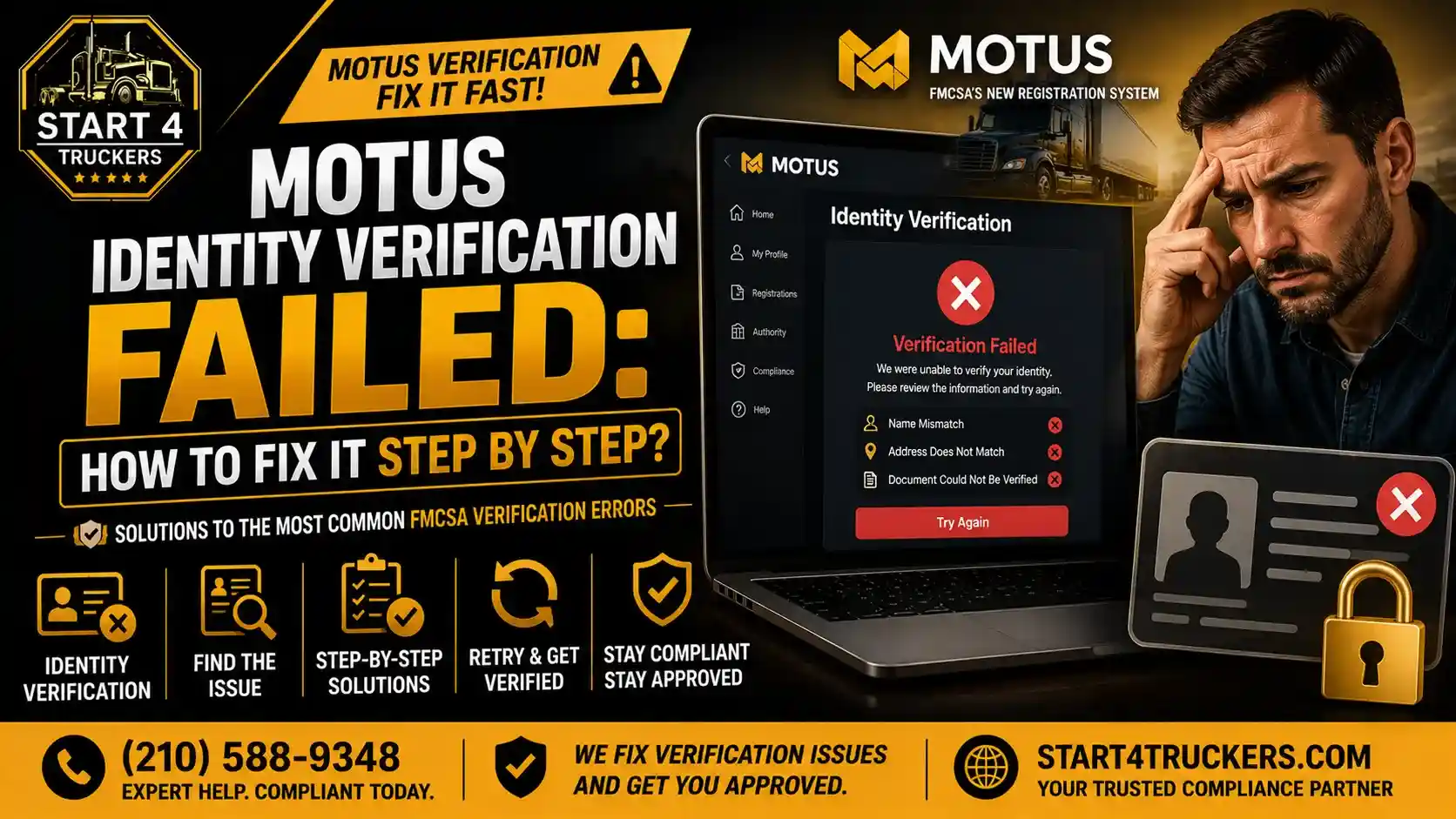
You sign in to Motus to claim your USDOT number or file an update, and a red message stops you. Maybe the selfie won’t go through. Maybe Motus says your name doesn’t match your profile. Or the page just keeps loading.
These errors look alike, but they come from different steps, and each step has a different fix. This guide covers the messages carriers actually report, what each one usually means, and what to do next.
If Motus identity verification failed, read the exact error message before retrying. Check whether the issue occurred during Login.gov identity verification or Motus business verification. For personal identity issues, review your legal name, accepted ID, Social Security number, and address information. For business verification or user-profile errors, check the information entered in Motus and contact FMCSA if the problem continues.
First, Find Out Which Step Failed
Motus checks you in layers. Login.gov handles your sign-in, your email and your two-factor code. After you accept FMCSA’s Rules of Behavior, Motus sends you to IDEMIA, FMCSA’s identity vendor, to scan your ID and take a selfie. Later, when you register or claim a company, Motus checks your business details against outside records.
Look at the address bar and the screen you were on when it failed:
| Where you saw the error | Step that failed | Who can help |
| A Login.gov page: sign-in, security codes, or any separate Login.gov identity-verification prompts | Login.gov | Login.gov support |
| QR code, ID scan or selfie screen | IDEMIA identity verification in Motus | FMCSA Contact Center |
| Inside Motus after you’re verified: business details, applicant name, submit | Motus business verification or registration | FMCSA Contact Center |
Only use the official Login.gov and Motus websites when signing in or submitting personal information. FMCSA has warned about fake “New MOTUS Portal” websites and phishing emails that ask carriers to update their profiles. Always check the website address before entering your information.
Motus Identity Verification Failed or Not Working
If your ID scan or selfie fails, start by checking the photo quality, ID condition, and internet connection.
FMCSA lists the common causes in its identity verification FAQ: worn or scratched IDs that don’t scan well, poor lighting, an ID that isn’t on a flat surface, a weak internet signal that times out the session, and a poorly captured selfie.
What to try:
- Place your ID on a light, flat surface in a well-lit room. Make sure the full ID is visible and avoid glare or shadows when taking the photo.
- Use Wi-Fi or a strong signal. A weak connection can interrupt the verification session and prevent it from completing.
- If you are already using a phone, tap the link below the QR code that says “Or click here to use the camera on this device.” If you are using a computer, scan the QR code with your phone. If the QR code stops working, log out and sign back in to generate a new one.
- For the selfie, take off your hat and glasses, face a light source and hold still until it captures.
These surface instructions apply to FMCSA’s identity-verification process. If Login.gov separately asks you to photograph your ID, follow its on-screen instructions because its photo guidance uses a different background requirement.
If online verification continues to fail, contact FMCSA at 1-800-832-5660 before visiting an IDEMIA enrollment center. FMCSA may direct you to an enrollment center for assistance with the ID and selfie verification process. The centers accept walk-ins, but you should follow FMCSA’s instructions before traveling.
Motus launched in May 2026, and FMCSA has continued updating the system and providing support as users move to the new platform. If you experienced an earlier verification problem, check FMCSA’s latest Motus guidance and try again after reviewing the steps above.
Identity Verification Failed: Security Check Failed.
The closest official message is Login.gov’s “Security check failed.” Login.gov uses reCAPTCHA and other security tools to check whether the person accessing the account is legitimate. The error does not necessarily mean your device or browser is unrecognized. Its suggested fixes:
Login.gov recommends these steps:
- Try signing in with the same device and browser you used to create your account.
- Turn off your VPN and ad blockers, then clear your browser cache.
- Try a different browser or update your current browser.
- Try again at a different time.
- Run antivirus software in case malware is interfering with Login.gov’s security checks.
- If the problem continues, contact Login.gov support.
If the message shows up during the selfie or ID step instead, it’s more likely an image check. Common triggers there are photographing a screen or a photocopy instead of the real card, a selfie that doesn’t look enough like the ID photo, or moving during capture. Use the original card, retake the photos in good light, and switch to a phone with a better camera if you need to. You can use a different phone for the IDEMIA photo step if needed. For Login.gov security-check problems, however, Login.gov recommends trying the same device and browser you used to create your account.
Login.gov Identity Verification Issues: ID, SSN and Address
If Login.gov itself asks you to verify your identity, these are its rules.
Accepted ID. Login.gov accepts valid U.S. driver’s licenses, state-issued ID cards, U.S. passport books and passport cards. It also accepts mobile driver’s licenses or state IDs through select digital wallets, depending on the state, device and wallet. Login.gov does not accept non-U.S. passports or IDs, military IDs, expired IDs, or paper and temporary IDs.
Social Security number. It’s required. An EIN won’t work, because an EIN belongs to a business, not a person.
Address and phone. Login.gov confirms your details against records tied to your name and either a phone number or a mailing address. A recent move that isn’t on your ID yet can cause a mismatch.
Lockouts. Login.gov limits how many times you can try to verify your ID, personal information or phone number. If Login.gov locks your account during identity verification, wait six hours before trying again. Other sign-in lockouts, such as too many incorrect passwords or security codes, may have different waiting periods. Then sign back in with the same account. Don’t create a new one. Before you submit again, check your address and Social Security number on the confirmation screen. You can fix mistakes there.
In person. Login.gov offers in-person identity verification at participating U.S. Post Offices for some partner agencies. You must first complete the required online steps and receive a barcode. Bring the same driver’s license or state ID you used during the online process. U.S. passport books, passport cards and mobile driver’s licenses are not accepted for this in-person option. This process is separate from FMCSA’s IDEMIA enrollment centers. Check whether this option is available for your agency before relying on it.
“The Applicant’s First and Last Name You Entered Does Not Match the Name on Your User Profile”
This is a Motus error, not a Login.gov one. Motus compares the applicant name you type on the registration with the name on your Motus user profile.
Your profile name comes straight from the ID you verified with. FMCSA’s Motus quick-start guide says your name prepopulates in your user profile as it appears on your government-issued ID. If the name is incorrect, contact FMCSA for guidance rather than trying to change it through the application. So if your license says “Michael J. Rivera” and you type “Mike Rivera,” Motus flags it.
Common causes:
- A nickname or short form of your first name
- A missing or extra middle name, or a missing Jr. or Sr.
- Hyphens, spaces or accents typed differently
- The company name typed in the applicant field
- A different person filling in the form than the person who verified
The fix: open your user profile, copy the name exactly as it appears, and enter it the same way on the application. If your legal name has changed, contact FMCSA before starting another verification attempt. Ask whether you need to update your government-issued ID, your Login.gov information, or your Motus profile before continuing. We couldn’t find FMCSA guidance on re-verification, so ask them before you start.
Each person who accesses Motus must use their own Login.gov account and complete their own identity verification. However, the person does not always have to be the business owner. A main account holder can invite an authorized employee or associate as a sub-account holder, allowing that person to access the company account with their own verified profile. If you’re unsure who should hold the account, see what a Motus Company Official is. For other application errors, our guide to Motus registration errors goes deeper.
Business Verification: No Matching Records Were Found
This message appears during business verification rather than the initial sign-in process. It indicates that Motus could not complete a check using the business information provided. The message alone does not identify which record or field caused the failure. FMCSA requires business verification when companies create their Motus accounts.
Common causes:
- Legal name differences: The business name entered in Motus may not match the company’s official legal records.
- DBA instead of legal name: Make sure you enter the registered legal business name in the legal-name field. Enter a DBA only where Motus asks for it.
- Recently formed business: Newly created businesses may need additional review if their records are not yet available or consistent.
- Address problems: Check that the address is accurate and meets FMCSA’s principal place of business requirements. A mailing address or virtual mailbox may not qualify as the actual business location.
- Business status: Check whether your state business registration is active and whether its details are current.
What to do: pull your IRS EIN confirmation (CP-575 or 147C letter) and your state formation documents. Use the legal business name that matches your IRS and state records. Enter your EIN exactly as shown on your IRS confirmation letter, and check that your principal place of business address is accurate and consistent with your business records and FMCSA requirements.
If the system sends your application to review instead of rejecting it, read Motus pending manual review. If your details already match and it still fails, contact FMCSA.
Unable to Verify Establishment/Member Block Status
If Motus displays “Unable to verify establishment/member block status,” save the exact message and note which step you were completing. We couldn’t verify an official FMCSA explanation for this specific error, so don’t assume it means your USDOT number is blocked or your operating authority has been revoked.
Check whether your business information matches your registration documents. If it does, contact the FMCSA Contact Center and include a screenshot, your USDOT number if assigned, and any application reference number. Ask FMCSA which verification step failed and whether your application needs manual review.
“We Were Unable to Complete Your Registration Based on the Information You Provided”
This is a general registration error. The message does not identify the underlying cause, so check your application details and contact FMCSA before submitting a new application.
Possible causes:
- An earlier identity or business verification step didn’t fully pass
- Your details match an existing USDOT record, so you may need to claim that number instead of applying for a new one
- Information that conflicts between sections, like an owner name that doesn’t match the verified applicant
Don’t start a fresh application just to get around the error. First, contact FMCSA and ask whether you need to claim an existing USDOT record or correct the information in your current application. A USDOT number application itself has no FMCSA filing fee, but operating authority applications have separate fees. Applying for another number without confirming what happened to your existing record can create unnecessary registration and recordkeeping problems.
Instead, take a screenshot and note the date, time and any reference number. Then call FMCSA. If your application has timed out while you were sorting this out, see if your application is no longer active.
Motus Website Not Working
Sometimes the problem isn’t you. Motus launched on May 19, 2026, as FMCSA’s modernized registration system, replacing older registration tools. FMCSA has continued supporting the transition and addressing system issues as users move to the new platform.
Before you assume your details are wrong:
- Try a different supported browser or open a private browsing window.
- Clear your browser cache and cookies.
- Turn off your VPN or browser extensions temporarily if they appear to interfere with the login process.
- Check FMCSA’s registration alerts and contact center for current Motus updates or service notices.
If your biennial update is overdue, check FMCSA’s temporary suspension notice. FMCSA announced that entities whose updates were due on or after June 1, 2026 would receive additional time and would not have their USDOT numbers inactivated solely for missing those updates during the Motus transition. The update requirement itself has not been permanently removed. If you’re still setting up your account, our guide to Login.gov and Motus account setup walks through it.
Mistakes That Make Verification Harder
- Creating a second Login.gov account. Login.gov says to sign back in with your existing account. A new email can also cause trouble when you claim a company tied to your old one.
- Ignoring Login.gov security warnings. Follow the troubleshooting instructions if Login.gov blocks or flags your sign-in attempt.
- Typing a nickname or the company name where Motus wants your legal name.
- Applying for a new USDOT number because the old one won’t link.
- Letting someone else verify as you. It won’t match, and it defeats the point of the check.
- Entering your SSN on a site you reached from an email link. Type motus.dot.gov yourself.
Who to Contact
| Problem | Contact |
| Sign-in, two-factor codes, security check, Login.gov ID or SSN screens | Login.gov support (login.gov/contact) |
| ID scan, selfie, QR code, name mismatch, business verification, registration errors | FMCSA Contact Center, 1-800-832-5660, Monday to Friday, 8 a.m. to 11 p.m. ET, and Saturday, 9 a.m. to 4 p.m. ET. |
| In-person identity verification | Call FMCSA first, then the IDEMIA Enrollment Center hotline at 1-833-832-5530 |
Whether you submit a ticket or call FMCSA, keep your USDOT number, error screenshot, and any reference numbers ready. If you submit a ticket, keep its number so you can follow up if needed.
Need Help Getting Through Motus?
Start4Truckers.com is a private filing service. We aren’t FMCSA, and no one can complete identity verification for you. That part has to be you. What we can do is review your business details against your available IRS and state records before you submit, help you understand the Motus main account holder and authorized user setup, and handle the filing work around it. If you’re starting a new authority, our USDOT registration assistance covers the full application.
Call Start4Truckers.com at (210) 588-9348.
Frequently Asked Questions
Why does Motus identity verification keep failing?
The cause depends on which step failed. ID scans and selfies can fail because of glare, a damaged ID, poor lighting, or a weak internet connection. Login.gov security checks can block sign-in, while name mismatches usually happen when the applicant’s name does not match the Motus user profile. Check the exact error message and follow the instructions for that step.
Is there a limit on how many times I can try?
FMCSA’s published identity-verification FAQ says users are not limited to a set number of attempts for its ID and selfie verification process. Login.gov has separate security limits. If Login.gov locks your account during identity verification, you must wait six hours before trying again. Sign in with your existing account rather than creating another one.
Can I verify my identity in person for Motus?
Yes. FMCSA works with IDEMIA enrollment centers that accept walk-ins. Call the FMCSA Contact Center at 1-800-832-5660 before you go.
Can someone else complete identity verification for me?
No. Each person must access Motus using their own Login.gov account and complete their own identity verification. A filing service can help with the business side, but it cannot verify someone’s identity on their behalf.
Does my name have to match my company name?
No. Identity verification uses your personal legal name exactly as it appears on your ID. Your company’s legal name is checked separately during business verification.
Can I use my EIN instead of my Social Security number?
Not for Login.gov identity verification. Login.gov requires an SSN because an EIN belongs to a business, not a person. Your EIN is used during Motus business verification.
Will a failed verification cost me my USDOT number?
A failed identity-verification attempt does not, by itself, mean your USDOT number has been cancelled or revoked. However, you may be unable to access or manage your company record until the verification issue is resolved. FMCSA has also temporarily suspended USDOT inactivation for entities whose biennial updates were due on or after June 1, 2026. Check the latest FMCSA notice and contact the agency before submitting a new USDOT application.