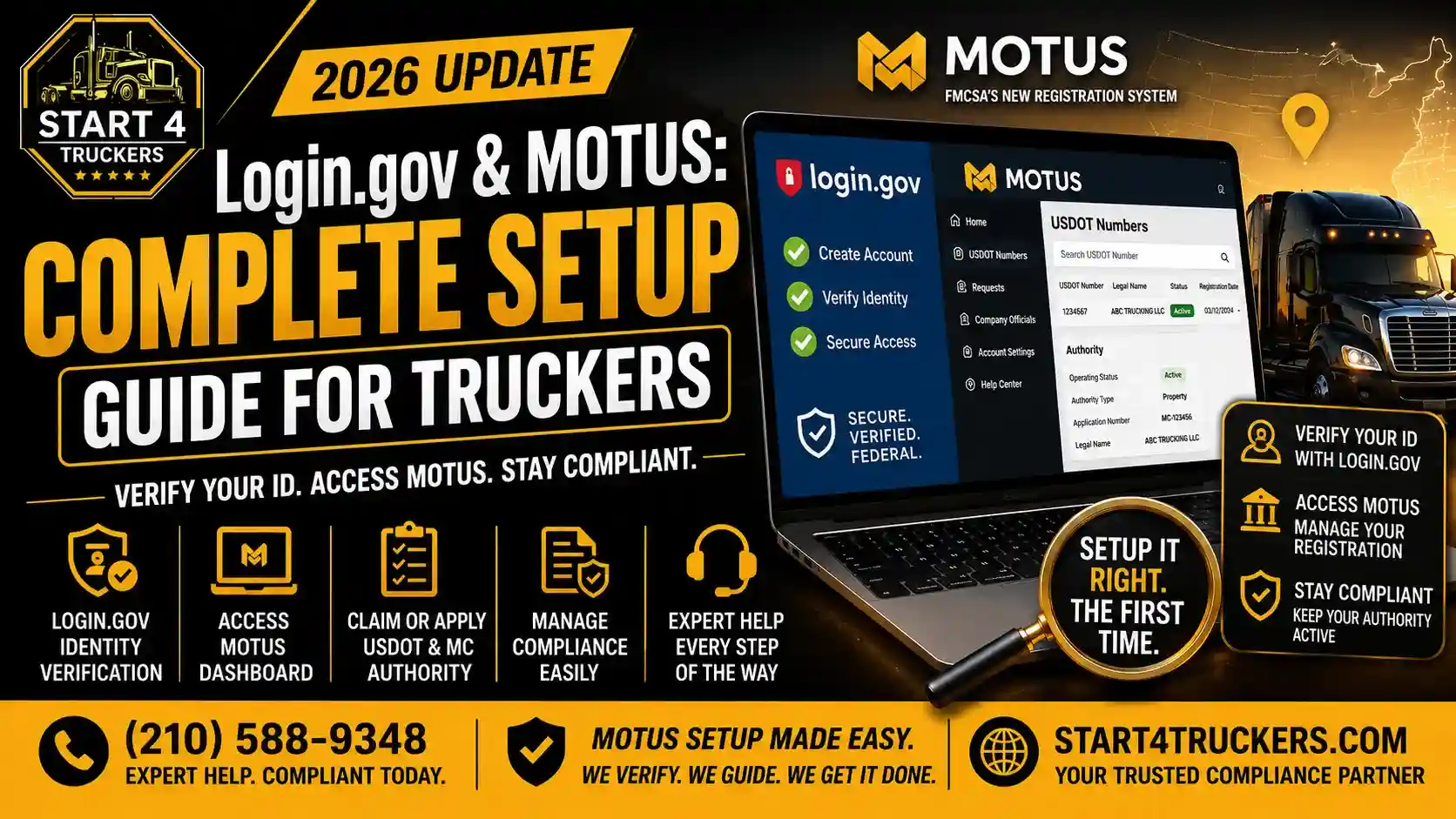
To log in to FMCSA Motus, visit motus.dot.gov, select the Login.gov sign-in option, and enter your Login.gov credentials. First-time users must complete the required identity verification and create a Motus user profile. Existing carriers may then claim their USDOT company record if authorized.
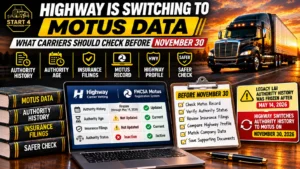
If you have a USDOT number, the Motus login is now the main door to your FMCSA registration. FMCSA officially launched Motus, its new USDOT Registration System, on May 19, 2026. The platform replaces several legacy registration systems and provides a centralized way to manage USDOT numbers, operating authority, company information, and registration filings. You can’t get in without a Login.gov account, and you can’t claim your existing record without passing identity verification.
The first login is where most carriers get stuck. A mismatched email, a second Login.gov account or a fake website can cost you hours. This guide walks through the official Motus login step by step, explains what the identity check involves, and covers the problems carriers run into most.
Where to Find the Official Motus Login Page
The only real Motus address is motus.dot.gov. FMCSA has been clear about this, and it has a reason: scammers moved in quickly after launch.
FMCSA warned about fraudulent emails with the subject line “Notice of Required Off-Cycle Update — Motus email.” The messages point to a fake “New MOTUS Portal” and may include a “carrier access code.”
FMCSA has identified several fraudulent domains impersonating the official Motus portal, including dot.motuswebresources.com, dot.motusdatasboard.com, dot.motusdatadesk.com, dot.motuswebdeck.com, and dot.motusfunction.com.
A few habits keep you safe:
- Type motus.dot.gov into your browser instead of clicking a link in an email or text.
- Remember that Motus is not an acronym. It comes from the Latin word for “movement” or “progress.” FMCSA uses the spelling “Motus,” not “MOTUS”.
- Treat any request for a “carrier access code” by email as suspect.
- Report scams to the FTC, the FBI’s Internet Crime Complaint Center or the FMCSA Contact Center.
What You Need Before You Start
FMCSA’s first-login guide lists three things to have ready:
- A Login.gov account, which you can create during the process if you don’t have one.
- A device with a camera. A phone, tablet or computer with a webcam all work.
- A valid government-issued identity document, such as a driver’s license, passport, government-issued identity card, or resident card.
FMCSA recommends using the same email address associated with your existing FMCSA Portal account if you plan to claim an existing USDOT number. Your Login.gov email also appears in your Motus user profile. FMCSA recommends avoiding a public business email for your secure user profile.
Motus works in Edge, Safari, Chrome and Firefox. Most carriers finish setup in about 20 minutes, but give yourself more room if it’s your first time using Login.gov.
One decision matters more than the rest: which email you use. If you want to claim an existing USDOT number, the company official must use the same Login.gov email they used in the FMCSA Portal. That is how Motus connects you to your existing record. If you can’t remember which email that was, find out before you create anything new.
How to Sign In to Motus With Login.gov
Here is the first-login process in order.
- Go to motus.dot.gov. On the homepage, find the box labeled “Regulated Entities & Supporting Companies” and click “Sign In Login.gov.”
- Sign in or create a Login.gov account. Use your existing credentials if you have them. If not, follow the prompts to create an account with your email address. Login.gov requires two-factor authentication, such as a code sent to your phone or email.
- Accept the Rules of Behavior. After Login.gov authenticates you, Motus shows the FMCSA IT system’s Rules of Behavior. Read them and accept to continue.
- Verify your identity. You’ll scan your government ID and take a photo of your face. On a computer, Motus shows a QR code. Scan it with your phone’s camera to continue the check on the phone. On a phone or tablet, tap the link on screen to use the device’s camera. If you don’t have access to a camera-equipped device, FMCSA allows users to complete identity verification in person at a designated enrollment center. Contact the FMCSA Contact Center at 1-800-832-5660 for assistance and instructions.
- Complete your user profile. Your name pulls from your ID. Add your address and phone number.
- Choose what you’re doing. From the dashboard you can link an existing USDOT number, start a new registration, or register a supporting company.
Why the Login.gov Email Decides Everything
An incorrect email address is one common reason carriers have trouble linking their USDOT number.
Only the Portal Company Official can claim the company’s existing USDOT record in Motus for the first time. They must sign in using the Login.gov email associated with their FMCSA Portal account. Using a different email may prevent the USDOT number from appearing.
This is also why the Company Official role matters. FMCSA says that person should be the company owner or someone authorized to sign documents for the company. It should not be a transportation service provider or an outside consultant. If a former employee, a dispatcher or a vendor is still listed in your Portal account, sort that out first, because claim rights follow that role.
If your USDOT number doesn’t appear, don’t create another Login.gov account. First, confirm which email the Company Official used in the FMCSA Portal. If you no longer have access to that account, follow the Login.gov recovery process.
What Motus Identity Verification Looks Like
Motus identity verification is the step most carriers underestimate. FMCSA says all registered users go through it to claim their profiles, even people who have verified their identity with the agency before.
The check uses biometrics and your government ID. FMCSA’s registration director described it as a requirement for the designated company official: once that person gets past ID verification and confirms the USDOT number, they can claim the account. Identity verification confirms that the individual accessing Motus is who they claim to be. Business verification is a separate process that FMCSA uses to verify company information before allowing registration transactions.
For a clean first attempt, work in good light, lay your ID flat with all four corners visible, and keep your phone charged and nearby if you’re starting on a computer. If verification keeps failing, don’t retry blindly. Contact FMCSA through the Motus contact page and describe what the screen says.
Link Your USDOT Number After the First Login
Once your profile and identity check are done, Motus shows a pop-up saying one or more USDOT numbers are associated with your Login.gov account. This is the claim step.
- Click “Link USDOT Number.”
- Select your USDOT number from the list and continue. If it doesn’t appear, contact FMCSA through motus.dot.gov/contact-fmcsa.
- Enter the verification code sent to your Login.gov email.
- Sign the first certification, which confirms you are the owner, an official partner or an authorized corporate officer.
- Close the pending certification notice and open your company account.
- Review your business information, including your legal business name, address, contact details, tax identification information, and business structure. Update any outdated information before completing the final certification.
- Click “Certify” in the banner at the top of the page.
- Accept the final certification statement.
After accepting the final certification statement, Motus displays a confirmation message indicating that the USDOT claiming process is complete.
Take the certification seriously. The statement covers record accuracy and your obligation to file required updates within 30 days of a change. FMCSA can take enforcement action over false or outdated information, including civil penalties, inactivation, suspension or revocation.
Common Motus Login Problems and How to Fix Them
Some carriers have reported login errors and account access problems since the launch.. Carriers reported login failures, error screens and slow support in the weeks after launch, and FMCSA has acknowledged “recovery and stabilization” work. Some problems are the system’s fault. Many are not, and the fixes below cover the ones you can control.
Why Can’t I See My USDOT Number in Motus?
This is almost always an email mismatch. Confirm which email was the Company Official’s in the FMCSA Portal and sign in with the Login.gov account that uses it. Don’t create a new account.
Why Isn’t the USDOT Claim Option Appearing in Motus?
First, confirm that you have completed identity verification and created your Motus user profile. If the USDOT claiming option still does not appear, contact FMCSA through motus.dot.gov/contact-fmcsa for assistance.
Why Isn’t My Login.gov Verification Code Working?
Check spam and filtered folders, confirm you’re using the right email, and make sure your phone number or authentication method is current. If you changed devices, you may need to set up a new authentication method. Login.gov can ask for extra verification before restoring access.
Why Is Motus Freezing or Showing an Error?
Log out, close the browser and try a private window, then a different supported browser. If errors continue everywhere, the problem is probably on FMCSA’s side, so note the time and what you saw.
What Should I Do If My FMCSA Account Is Locked or Archived?
FMCSA Portal accounts may be disabled after 90 days of inactivity and archived after 12 months. If your account has been disabled or archived, contact the FMCSA Contact Center at 1-800-832-5660 for assistance.
Who Should Not Claim the Account
Not everyone who touches FMCSA registration should log in and claim a USDOT number.
Transportation service providers should not claim a carrier’s USDOT number. Instead, they should create a supporting company account in Motus. This allows them to manage their company information and connect with registrants after those registrants have established their company accounts, which lets them manage their information and connect with the carriers they serve. Supporting companies include insurance companies, blanket companies and BOC-3 filers.
In a supporting company, each person needs their own Login.gov account, and sub-account holders wait for an invitation email from the main account holder.
Does the Motus Login Change by State?
No. Motus is a federal system, so the login and identity check are the same whether your company is in Texas, California, Florida, New York or anywhere else. State permits and intrastate registrations are handled separately, so check your state’s requirements.
Getting Help When Motus Won’t Cooperate
Start with the contact page at motus.dot.gov/contact-fmcsa. FMCSA has extended its Registration Customer Service Center hours to provide additional support during the Motus transition. Phone and chat support are available from 8 a.m. to 11 p.m. Eastern on weekdays, with additional Saturday availability. Check the official FMCSA contact page for the latest Saturday hours.
If you submit a ticket through the FMCSA Contact Center, submit one and follow up on it. FMCSA specifically asks users not to create duplicates. Include your USDOT number, the email you used, screenshots and the time the problem happened. “Motus is broken” gives support nothing to work with. “Signed in at 8:15 a.m., finished ID verification, claim pop-up never appeared” does.
You can also call the FMCSA registration line at 1-800-832-5660.
If you’d rather not work through the registration side alone, Start 4 Truckers helps carriers with USDOT registration, MC authority and related filings. You can reach the team at (210) 588-9348 or info@start4truckers.com to talk through your situation.
Motus Login FAQs
What is the Motus login?
It’s the sign-in process for FMCSA’s Motus registration system at motus.dot.gov. You sign in with a Login.gov account, then complete identity verification and set up a user profile. Once that’s done, you can claim an existing USDOT number or start a new registration.
When did FMCSA launch Motus?
FMCSA officially launched Motus for all customers on May 19, 2026. The system replaced several legacy registration tools and became the primary platform for managing USDOT registration activities, company information, and operating authority filings.
Do I need a Login.gov account for Motus?
Yes. Login.gov is required to access Motus. If you don’t have an account, you can create one from the Motus sign-in button. Login.gov uses two-factor authentication, so have your phone or email ready for the code.
Which email should I use for Motus?
Use the same Login.gov email the Company Official used in the FMCSA Portal. FMCSA says that match is how you link your USDOT number to your Motus account. A different email won’t connect to your existing record.
Why does Motus ask for my ID and a photo of my face?
FMCSA built identity verification into Motus to confirm that registrants are who they say they are, as part of its effort to fight fraud and shell companies. It applies to motor carriers, brokers and other registered users. Plan on having your driver’s license or passport and a camera-equipped device.
What should I do if the Motus login isn’t working?
First check that you’re on motus.dot.gov and that you’re using the correct Login.gov email. Then try a private window or a different browser. If the problem continues, contact FMCSA through the Motus contact page, or call 1-800-832-5660, and submit a single ticket with your USDOT number and screenshots.