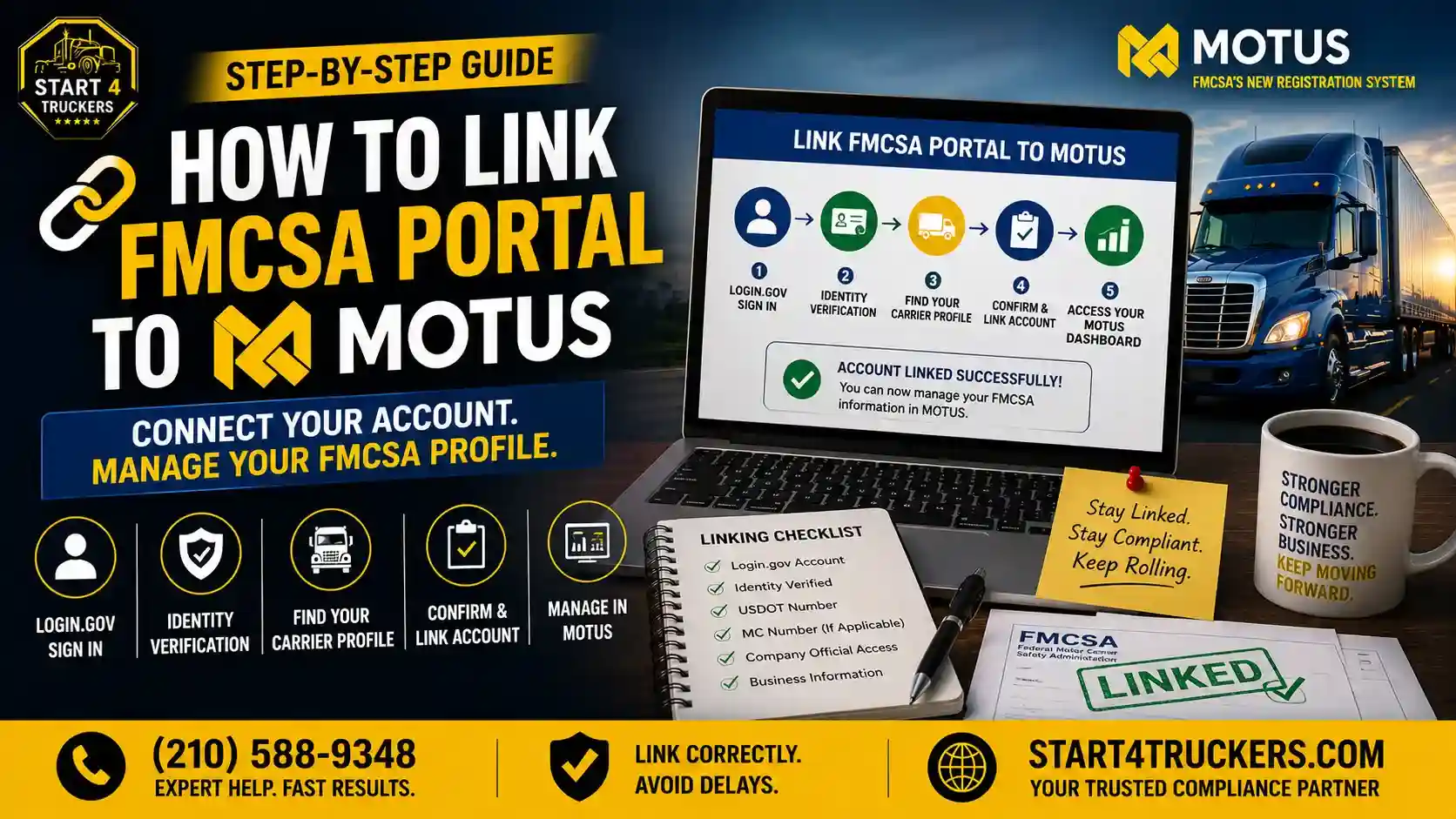
If you’re moving to MOTUS, one of the first steps is linking your existing FMCSA Portal account correctly. Without linking your carrier profile, you may not be able to manage your USDOT Number, MC Authority, or registration details.
This guide explains the complete process, common errors, and how to troubleshoot account-linking issues, so you can get into your MOTUS dashboard without unnecessary delays. Start4Truckers LLC helps carriers get through this exact process every day.
How to Link FMCSA Portal to MOTUS
To link your FMCSA Portal to MOTUS, sign in using your Login.gov account, complete identity verification if prompted, locate your carrier profile using your USDOT Number or MC Number, verify your business information, and confirm the account-linking request. Once approved, you’ll be able to manage your FMCSA registration through the MOTUS dashboard.
What Is MOTUS and Why Do You Need to Link Your FMCSA Portal?
MOTUS is FMCSA’s carrier registration and account management system. Linking your existing FMCSA Portal account to MOTUS transfers your carrier profile access into the new platform, so you can continue managing your USDOT Number, MC Authority, and registration details without starting from scratch.
What Is the FMCSA Portal?
The FMCSA Portal was the previous system carriers used to manage registration details, file updates, and access carrier records tied to their USDOT Number and MC Authority.
What Is MOTUS?
MOTUS is FMCSA’s newer carrier registration platform, designed to consolidate account access, identity verification, and carrier profile management into one system.
Why FMCSA Replaced the Legacy Registration System
The shift to MOTUS reflects a broader move toward stronger identity verification and a more unified account structure across FMCSA’s registration and compliance systems. Our guide on FMCSA’s compliance transition from URS to MOTUS covers this shift in more detail.
Benefits of Linking Your FMCSA Portal to MOTUS
Properly linking your account means you retain access to your existing carrier profile, avoid creating duplicate records, and can continue managing your registration without interruption.
Who Needs to Link FMCSA Portal to MOTUS?
Anyone with an existing FMCSA Portal account tied to a USDOT Number, MC Authority, or carrier profile generally needs to link that account to MOTUS, including motor carriers, brokers, freight forwarders, and authorized company officials.
New Motor Carriers
New carriers without a prior FMCSA Portal account typically register directly in MOTUS rather than going through a linking process.
Existing USDOT Number Holders
If you already have an active USDOT Number, linking your existing account ensures continuity of your carrier records.
MC Authority Holders
Carriers with existing operating authority need their account properly linked to keep managing that authority through MOTUS.
Freight Brokers
Brokers with existing FMCSA registration records also need to complete the linking process to maintain access to their profile.
Freight Forwarders
The same applies to freight forwarders who previously managed their registration through the FMCSA Portal.
Company Officials and Authorized Users
Anyone designated as a company official or authorized user on a carrier account should confirm their own access is properly linked as well. Our guide on what is a MOTUS company official explains this role in more detail.
Requirements Before You Link FMCSA Portal to MOTUS
Before linking your account, you’ll need an active Login.gov account, completed identity verification, your USDOT Number, your MC Number if applicable, confirmed company official access, and accurate business information on file.
Active Login.gov Account
Login.gov serves as the identity verification layer behind MOTUS access, so this needs to be set up first. Our guide on Login.gov and MOTUS account setup walks through this process.
Identity Verification Completed
Make sure your identity verification through Login.gov has actually completed successfully before attempting to link your carrier profile.
USDOT Number
Have your USDOT Number ready, since this is typically how MOTUS locates your existing carrier profile.
MC Number (If Applicable)
If your business holds operating authority, have your MC Number on hand as well.
Company Official Access
Confirm you’re recognized as a company official or authorized user for the carrier profile you’re trying to link.
Correct Business Information
Double-check that your business name, address, and other details are accurate and consistent with your existing FMCSA records.
Internet Browser and Device Requirements
Use an updated, supported browser to avoid unnecessary technical hiccups during the linking process.
How to Link FMCSA Portal to MOTUS (Step-by-Step Guide)
Linking your account involves signing in through Login.gov, accessing the MOTUS portal, completing identity verification, searching for your carrier profile using your USDOT or MC Number, confirming your business details, and verifying the link was successful.
Step 1: Sign In to Login.gov
Create a Login.gov Account (If You Don’t Have One)
If you don’t already have one, create a Login.gov account before attempting to access MOTUS.
Enable Multi-Factor Authentication
Set up multi-factor authentication during account creation to keep your login secure and to satisfy MOTUS’s identity requirements.
Step 2: Access the MOTUS Portal
Open the MOTUS Dashboard
Navigate to the MOTUS platform and sign in using your Login.gov credentials.
Accept Terms and Conditions
Review and accept the platform’s terms and conditions to proceed with account setup.
Step 3: Verify Your Identity
Complete Identity Verification
Follow the prompts to complete identity verification, which may include document upload or additional confirmation steps.
Resolve Verification Errors
If verification fails, our guide on MOTUS identity verification failed covers common causes and fixes.
Step 4: Search for Your Carrier Profile
Link Your USDOT Number
Enter your USDOT Number to locate your existing carrier profile within MOTUS.
Link Your MC Number
If applicable, enter your MC Number to connect your operating authority to the same profile.
Verify Company Information
Confirm that the business information displayed matches your actual carrier records.
Step 5: Confirm the Account Linking Request
Review Business Details
Carefully review all displayed business details before submitting your linking request.
Submit Your Request
Once everything looks correct, submit the request to complete the linking process.
Step 6: Verify Successful Linking
Check Your MOTUS Dashboard
After submission, check your MOTUS dashboard to confirm your carrier profile now appears correctly.
Confirm Access to Carrier Services
Test that you can access relevant carrier services, like viewing your registration details or starting an update.
Running into trouble linking your account? Call Start4Truckers LLC at (210) 588-9348, and we’ll help you get it sorted.
How to Verify Your FMCSA Portal Is Successfully Linked to MOTUS
Confirm successful linking by checking your carrier dashboard, verifying your linked USDOT Number and operating authority display correctly, and confirming your user permissions are active.
View Your Carrier Dashboard
Your dashboard should display your carrier profile information clearly once linking is complete.
Check Linked USDOT Number
Confirm your USDOT Number appears correctly and matches your official records.
Verify Operating Authority
If applicable, check that your MC Authority displays correctly under your linked profile.
Confirm User Permissions
Make sure your account shows the correct permissions level, whether that’s company official or another authorized role.
Common Errors While Linking FMCSA Portal to MOTUS
Common linking errors include a carrier profile not being found, an unrecognized USDOT Number, failed MC Number linking, identity verification failures, company official verification errors, duplicate carrier profiles, accounts already linked, and general MOTUS system errors.
Carrier Profile Not Found
This can happen if your USDOT Number was entered incorrectly or if your existing profile wasn’t properly migrated.
USDOT Number Not Recognized
Double-check for typos, and confirm the number is active before assuming there’s a deeper system issue.
MC Number Linking Failed
If your MC Number won’t link, confirm it’s correctly associated with the same business entity as your USDOT Number.
Login.gov Identity Verification Failed
This remains one of the most common obstacles across the entire platform. See our guide on MOTUS identity verification failed for troubleshooting steps.
Company Official Verification Error
If the system doesn’t recognize you as an authorized company official, this step will fail until that’s resolved.
Duplicate Carrier Profile
If more than one profile exists for your business, this can create conflicts during the linking process.
Account Already Linked
Sometimes an account has already been linked, often by another authorized user, which can cause a new attempt to fail.
MOTUS System Error
Occasionally, technical issues on MOTUS’s end can interrupt the process entirely, unrelated to anything on your end.
How to Fix FMCSA Portal Linking Problems
Fixing linking problems typically involves correcting business information errors, redoing identity verification, double-checking your USDOT and MC details, and contacting FMCSA support if the issue persists.
Update Incorrect Business Information
If your business details don’t match FMCSA’s records, correct them before attempting to link again.
Complete Identity Verification Again
If verification failed, walk through the process again carefully, checking each step for accuracy.
Verify Your USDOT and MC Information
Confirm both numbers are accurate and correctly associated with your business before retrying.
Contact FMCSA Support
If you’ve tried the above steps without success, FMCSA support can look into account-specific issues you can’t resolve on your own.
Wait for Manual Review if Required
Some linking issues require manual review on FMCSA’s end, which can take additional time to resolve.
Want help troubleshooting a stubborn linking error? Call Start4Truckers LLC at (210) 588-9348 today.
What Can You Do After Linking Your FMCSA Portal to MOTUS?
Once linked, you can manage your carrier profile, update registration information, apply for a new USDOT Number if needed, manage operating authority, submit registration updates, and monitor your application status directly through MOTUS.
Manage Your Carrier Profile
View and manage your core carrier details directly from your MOTUS dashboard.
Update Registration Information
Make necessary updates to your business details as they change over time.
Apply for a New USDOT Number
If you’re expanding into a new entity, our guide on how to apply for a new USDOT number in MOTUS walks through that separate process.
Manage Operating Authority
Review and manage your MC Authority status directly through your linked account.
Submit Registration Updates
File updates like your MCS-150 biennial update directly through MOTUS once your account is linked.
Monitor Application Status
Track the status of any pending applications or updates from your dashboard going forward.
Can You Link Multiple Carrier Profiles in MOTUS?
Yes, in many cases. Company officials overseeing more than one carrier, fleet managers, and consultants managing multiple clients can often link and manage multiple carrier profiles within appropriate permission levels.
Company Officials
Officials tied to more than one carrier entity can typically manage each linked profile separately.
Fleet Managers
Fleet managers overseeing multiple USDOT Numbers under one company structure can access each relevant profile as authorized.
Consultants Managing Multiple Carriers
Compliance consultants working with several trucking businesses can maintain access to each client’s profile, provided proper authorization is in place for each one.
Security Tips When Linking Your FMCSA Portal
Protect your account by securing your Login.gov credentials, enabling multi-factor authentication, keeping your contact information current, and reviewing user permissions on your carrier profile regularly.
Protect Your Login.gov Account
Use a strong, unique password and avoid sharing your credentials with anyone outside your organization.
Enable Multi-Factor Authentication
This adds an important extra layer of protection against unauthorized account access.
Keep Contact Information Updated
Outdated contact details can delay important notifications about your account or registration status.
Review User Permissions Regularly
Periodically check who has access to your carrier profile and remove anyone who no longer needs it.
Troubleshooting Checklist Before Contacting FMCSA
Before reaching out to FMCSA directly, run through this checklist:
- Login.gov working correctly
- Identity verified
- Correct USDOT Number entered
- Correct MC Number entered
- Company Official permissions confirmed
- Carrier profile available in the system
- Browser cache cleared
- No duplicate accounts
- MOTUS service status checked
How Start4Truckers LLC Can Help
Linking your FMCSA Portal account to MOTUS should be simple, but identity verification hiccups, mismatched business details, and system errors can turn it into a frustrating process. Start4Truckers LLC helps carriers with:
- MOTUS account setup
- FMCSA Portal linking
- Login.gov assistance
- Company official setup
- USDOT registration
- MC Number registration
- Carrier profile management
- BOC-3 filing
- MCS-150 updates
- Ongoing FMCSA compliance support
If you run into linking or verification issues, our team can help you get your account connected correctly and keep your registration moving. Explore our trucking company setup services or check our plans and pricing for ongoing compliance support.
Call Start4Truckers LLC today at (210) 588-9348 or visit our contact page to get your FMCSA Portal linked to MOTUS without the headache.
Conclusion
Linking your FMCSA Portal account to MOTUS is a necessary step for keeping your carrier profile, USDOT Number, and MC Authority accessible under FMCSA’s newer system. The process itself is straightforward when your Login.gov account, identity verification, and business information are all in order, but errors like unrecognized numbers or failed verification can slow things down if you’re not prepared.
Following the steps in this guide, and keeping your account secure with strong credentials and multi-factor authentication, will help you avoid most common linking issues. Start4Truckers LLC is a trusted resource for MOTUS onboarding, FMCSA registration, and ongoing compliance support if you run into trouble along the way. Call us at (210) 588-9348 or reach out through our contact page to get help today.
Frequently Asked Questions
1. How do I link my FMCSA Portal to MOTUS?
Sign in with your Login.gov account, complete identity verification, search for your carrier profile using your USDOT or MC Number, confirm your business details, and submit the linking request.
2. Do I need a Login.gov account before linking to MOTUS?
Yes. Login.gov handles identity verification for MOTUS, so you’ll need an active account before you can begin the linking process.
3. Can I use my old FMCSA Portal account with MOTUS?
Your old FMCSA Portal account itself isn’t used directly. Instead, you link your existing carrier profile, identified by your USDOT or MC Number, to your new Login. gov-based MOTUS account.
4. Why can’t MOTUS find my USDOT Number?
This is often due to a typo, an inactive number, or a carrier profile that wasn’t fully migrated. Double-check your number and confirm its active status before trying again.
5. How do I link my MC Number to MOTUS?
During the linking process, enter your MC Number alongside your USDOT Number so MOTUS can connect your operating authority to the same carrier profile.
6. What documents do I need before linking my FMCSA account?
You’ll generally need your USDOT Number, MC Number if applicable, and accurate business information matching your official FMCSA records.
7. How long does it take to link my FMCSA Portal to MOTUS?
For most carriers with accurate information and completed identity verification, the process can be completed in one sitting, though some cases may require additional review time.
8. Can I manage multiple carrier profiles in one MOTUS account?
Yes, company officials, fleet managers, and consultants managing multiple carriers can often link and manage several profiles, provided they have proper authorization for each one.
9. What should I do if Login.gov identity verification fails?
Review the specific error message, double-check your submitted information, and try the verification process again. If it continues to fail, contact support for further assistance.
10. Can I unlink my FMCSA account from MOTUS later?
Account management options can vary by situation, so it’s best to contact FMCSA support directly if you need to unlink or modify an existing connection.
11. How do I know if my account was linked successfully?
Check your MOTUS dashboard for your carrier profile, confirm your USDOT Number and operating authority display correctly, and verify your user permissions are active.
12. What are the most common MOTUS account-linking errors?
Common errors include unrecognized USDOT Numbers, failed MC Number linking, identity verification failures, duplicate carrier profiles, and accounts that are already linked.
13. Who can link a carrier profile in MOTUS?
Company officials and other authorized users recognized on the carrier’s account are generally able to complete the linking process.
14. What should I do if my FMCSA Portal account is already linked?
If the system indicates your account is already linked, confirm with other authorized users at your company before attempting to create a duplicate connection.
15. Can Start4Truckers LLC help link my FMCSA Portal to MOTUS?
Yes. Start4Truckers LLC helps carriers complete the account linking process, troubleshoot identity verification issues, and confirm their carrier profile is set up correctly in MOTUS.