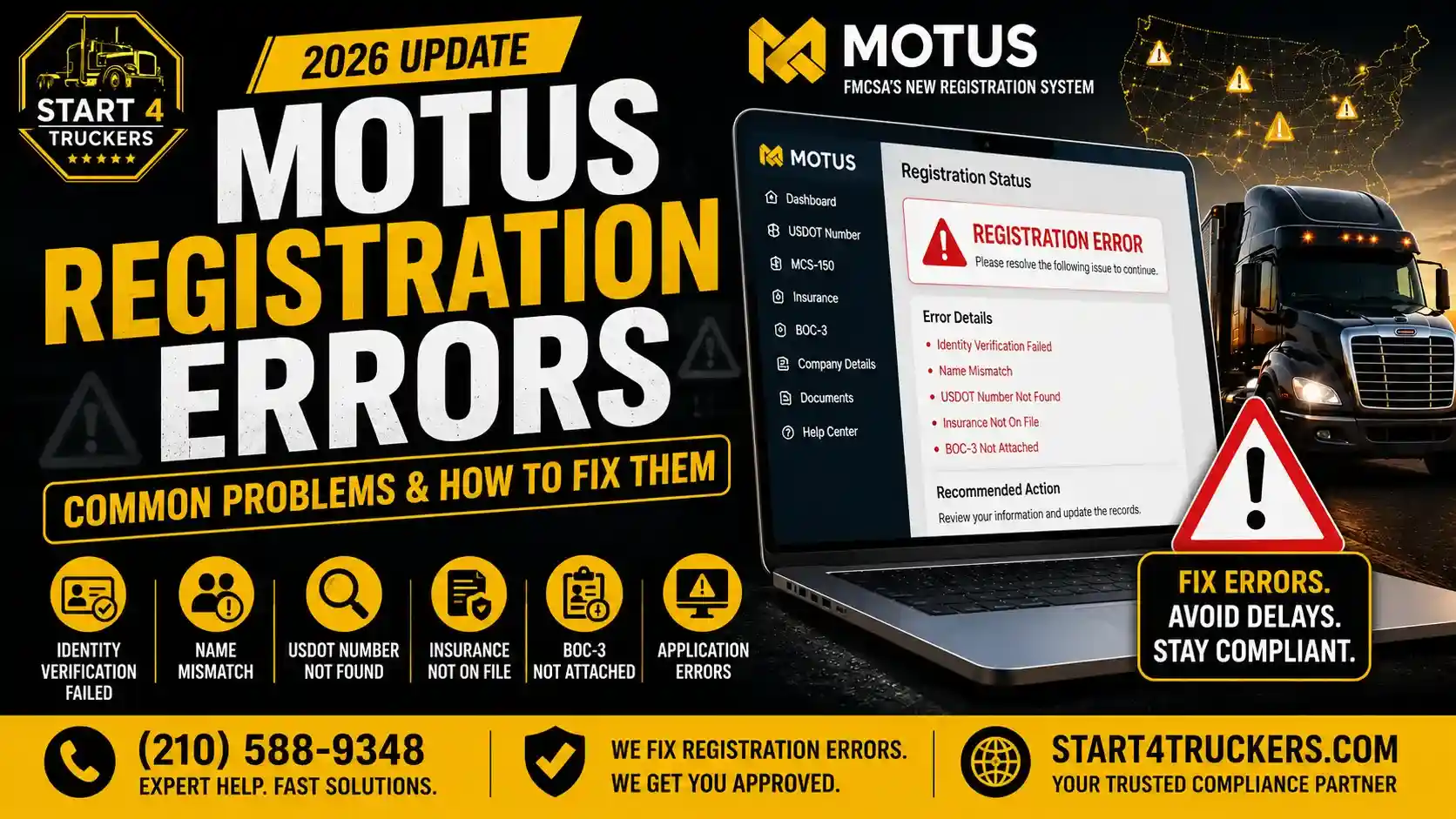
When you went about completing your FMCSA registration, setting up your company profile, or linking your existing USDOT number in the new MOTUS portal, you probably encountered a problem, such as a red warning banner appearing, the screen getting stuck on an indefinite loading spinner, or an error message saying that your application had been closed and reset.
In 2026, the move from the previous Unified Registration System (URS) to the Motus: USDOT Registration System included a multi-layered federal identity verification procedure using IDEMIA, strict checks for authorized Company Officials, a requirement that payments be made electronically, and automatic cross-referencing with the IRS and the state corporate registries; the process will halt if any one data item is in conflict in order to prevent fraud and chameleon carrier activity.
If your registration is stuck, don’t repeatedly refresh the page, enter conflicting entity names, or create more than one Login.gov profile, since doing so will trigger automated fraud alerts and 24-hour verification lockouts.
Use the verified guide to identify your exact error message, understand the regulatory issue, and apply the official FMCSA-approved solution so your operating authority stays on schedule.
Quick Navigation: Find Your MOTUS Error
If you are stuck on a specific error screen right now, locate your issue in this diagnostic lookup table:
| Exact Error Shown in MOTUS | Primary Cause | Immediate Action |
| “Your Application Is No Longer Active…” | Inactivity timeout, browser session crash, or verification data mismatch during initial setup. | Sign out completely from MOTUS and Login.gov, clear cache, verify name alignment, and restart cleanly. |
| “Applicant’s Name Does Not Match User Profile” | Personal legal name in Login.gov differs from the Company Official name entered on the application. | Audit your legal name character-by-character; ensure commercial business names are kept out of personal name fields. |
| “We’re Unable to Complete Your Registration” | IRS EIN mismatch, unauthorized officer designation, or an unresolved flag on existing safety records. | Cross-reference your IRS Form CP-575 against your state Articles of Organization before resubmitting. |
| “Business Verification: No Matching Records Were Found” | The newly formed LLC may not be propagated to public databases yet, or the physical operations address may conflict. | Verify active standing with your Secretary of State and check exact corporate punctuation (e.g., comma vs. period). |
| “Link a USDOT Number” is Greyed Out | Profile was inadvertently registered as a Transportation Service Provider (TSP) instead of a Motor Carrier. | Use the Gear Icon to permanently close the TSP account, or submit an FMCSA ticket with ownership proof. |
| “Could Not Save BVIF” / Status Code 500 | Backend FMCSA database timeout, server sync failure, or automated Pay.gov payment handshake issue. | Distinguish browser/session formatting errors from platform-side server drops before editing entries. |
1. “Your Application Is No Longer Active” in MOTUS
The Complete System Message
“Your application is no longer active. Your application was closed, and your identity verification and profile progress were reset. Sign out and sign back in to start a new application from the beginning.”
This is still the most commonly reported point of failure among carriers who are moving into MOTUS.
What Actually Got Reset?
At this point, MOTUS has ended your current session and taken all the draft entries out of the application cache. Nevertheless, your Login.gov account is still valid and unharmed, and you don’t need to sign up for a new Login.gov email address.
The reset only affects the session container:
- Draft physical and mailing addresses
- Operation classifications selected (Interstate vs. Intrastate)
- Selected cargo categories and equipment details
Why It Happens
- Security Session Timeout: MOTUS applies an automated timeout window. Taking more than 15 to 20 minutes to retrieve EIN documentation, insurance binders, or banking details on a single page triggers a security drop.
- Identity Token Ping Failure: If Login.gov passes an authentication token that MOTUS cannot reconcile during the initial browser handshake, it resets the draft to prevent orphaned or unassigned records.
- Multi-Tab or Browser Navigation Conflicts: Having MOTUS open across multiple browser tabs or using the browser’s “Back” arrow corrupts the security token.
How to Fix It Before You Restart
- Log Out Completely: Click your profile name in the top-right corner and select Sign Out from both MOTUS and Login.gov.
- Clear Cache or Launch an Incognito Window: Clear your browser cache and cookies, or open a clean Chrome or Firefox Incognito window to purge expired session tokens.
- Assemble Records in Advance: Have your state formation documents, IRS Form CP-575 (EIN confirmation), and officer details directly in front of you before clicking “Start Application.” Complete the workflow in one uninterrupted session.
2. “The Applicant’s First and Last Name Does Not Match the Name on Your User Profile”
Why the System Flags This
Under federal security rules, MOTUS operates on three distinct layers of legal identity:
- The Login.gov Verified Identity: The individual human who completed identity proofing through FMCSA’s verification partner, IDEMIA, using an unexpired U.S. Driver’s License, State Real ID, or U.S. Passport.
- The Designated Company Official: The authorized officer, managing member, or partner listed in state formation filings with legal authority over the motor carrier.
- The Legal Business Name: The commercial trucking entity registered with the state (e.g., Apex Hauling LLC).
Login.gov / IDEMIA Identity: John Robert Doe; MUST MATCH EXACTLY with MOTUS Company Official: John R. Doe; and MUST NOT BE CONFUSED with Legal Business Name: Doe Freight Logistics LLC]
This error triggers when an applicant enters the business name in personal name fields, or when an administrative dispatcher tries to complete verification using their personal credentials instead of the authorized owner’s profile.
Step-by-Step Resolution
- Eliminate Nicknames: If your government-issued ID displays “Robert”, do not enter “Bob” in MOTUS.
- Match Suffixes and Middle Names: Suffixes like “Jr.”, “Sr.”, or “III” must match what was scanned by IDEMIA during identity verification. If your verified name has no middle initial, do not add one on the MOTUS prompt.
- Third Parties Cannot Self-Verify as Company Officials: Dispatchers, safety consultants, and process agents cannot complete initial profile claims under their own names. The primary business owner must establish the verified account first, then delegate administrative permissions.
3. Inability to Claim USDOT Record / “Link a USDOT Number” Greyed Out
If you already have a USDOT or MC number and need to manage or update it in MOTUS, you may find that the “Link a USDOT Number” button is greyed out or returns an error stating that the record cannot be claimed.
The Root Cause: Inadvertent TSP Account Registration
The most frequent cause is that your email address was registered under the Transportation Service Provider (TSP) role rather than an authorized Motor Carrier Company Official profile.
A TSP account is designed for third-party compliance companies, process agents, and mechanics; it does not possess legal authority to bind an operating carrier record directly.
Official FMCSA Resolution: Self-Service TSP Account Closure
If your email was registered as a TSP by mistake, you can close the account yourself directly within the portal without waiting on a support ticket:
- Log in to your Motus account at https://motus.dot.gov/.
- Navigate to your TSP account page.
- Click the gear icon on the right side of the screen.
- Select “Close Account.”
- Follow the on-screen prompt to confirm that you are permanently closing the TSP account.
What Happens Next?
If your Login.gov email address matches the email linked to your active USDOT record, a dialog box will immediately appear prompting you to claim your USDOT number.
What If “Link a USDOT Number” Remains Greyed Out?
If you successfully closed your TSP account but the linking button remains disabled or unclickable, submit an official support ticket to the FMCSA Registration Customer Service Center with the following three mandatory verification proofs:
- USDOT Number (and MC/FF number, if applicable).
- Full Legal Name and Login.gov Email Address of the Company Official who will serve as the account owner.
- Proof of Company Ownership: Clear PDF documentation such as your official IRS EIN confirmation letter (Form CP-575), state-certified Articles of Incorporation/Organization, or local municipal operating license.
4. “We’re Unable to Complete Your Registration Based on the Information You Provided”
This security prompt indicates that the automated MOTUS system detected a direct discrepancy between your submitted application and external federal records.
Potential Root Causes
- IRS Name vs. State Filing Conflict: Punctuation discrepancies between your IRS CP-575 letter and your MOTUS entry will block verification (e.g., “Smith Logistics, LLC” vs. “Smith Logistics LLC”).
- Safety & Enforcement Blocks: If an owner, partner, or contact telephone number is tied to an unresolved Out-of-Service Order (OOSO), delinquent civil penalties, or an inactive record flagged for chameleon carrier operations, MOTUS automatically halts the filing.
- Commercial Mailbox & Virtual Address Rejections: FMCSA mandates a bona fide physical location for principal operations. Entering a P.O. Box, CMRA, or virtual postal center triggers an immediate automated validation stop.
Recommended Action Plan
- Pull your IRS Form CP-575 or 147C letter along with your state corporate charter. Confirm that legal entity names and Tax IDs match character for character.
- Ensure your designated principal place of business is a legitimate terminal, dispatch facility, or residential home office, not an unstaffed mail depot.
- If records are identical and verified, do not resubmit repeatedly. Contact the FMCSA Contact Center at 1-800-832-5660 to check for internal administrative holds on your records.
5. “Business Verification: No Matching Records Were Found”
This error occurs during the automated business profile search phase.
Why It Triggers
- Secretary of State Database Lag: If your LLC or corporation was registered within the last 48 to 72 hours, state corporate filings may not yet have synced with federal business indices.
- Sole Proprietorship Name Confusion: Sole proprietors must register under the owner’s legal name, not an unfiled trade name or DBA, unless formal trade registration is verified.
- Transposed EIN: Inverted digits or entering a state entity charter number into the 9-digit Federal EIN field.
Verification Checklist Before Retrying
- Confirm your business status is listed as “Active / In Good Standing” on your Secretary of State’s online portal.
- Allow at least 3 business days following EIN issuance for IRS databases to propagate.
- Verify that your Federal Tax ID is entered without dashes, prefixes, or transposed characters.
6. MOTUS Technical Errors: BVIF, Status 500, & Electronic Payment Rules
Not all delays stem from legal mismatches; platform-level timeouts, script blockers, and transaction failures frequently affect the MOTUS environment.
| Technical Error / Symptom | Root Cause | Immediate Workaround |
| “Could not save BVIF” | Business Verification Interface Form failed to write to the cloud database, often caused by special characters in address fields. | Remove slashes, pound signs (#), and special characters from address lines. Use standard postal formats (e.g., “STE 200” instead of “Suite #200”). |
| “Failed to start workflow” | Backend failure to generate a unique tracking session ID. | Log out completely, wait 10 minutes, and open a fresh Incognito session. |
| Request failed with status code 500 | FMCSA internal server error caused by database synchronization drops or server load spikes. | Do not modify valid application data. Wait 1 to 2 hours for server recovery. |
| Request failed with status code 400 | Malformed data payload passed by browser (invalid date formats, missing digits in phone numbers). | Review all phone number and date entries for strict numeric adherence. |
| “Failed to start transaction with Pay.gov” | Transaction handshake dropped between MOTUS and the U.S. Treasury’s Pay.gov engine. | Do not repeatedly submit your card details. Wait 30 minutes, re-login, and check your “Applications / Billing” tab to verify payment status. |
| Page keeps loading or spinning indefinitely | JavaScript conflicts caused by browser ad-blockers, tracking protection, or VPN routing. | Disable ad-blocking extensions, disconnect VPNs/proxies, and use desktop Google Chrome. |
7. Mandatory Electronic-Only Payments (Paper Checks Prohibited)
Under White House Executive Order 14247 (Modernizing Payments To and From America’s Bank Account), the FMCSA has transitioned to electronic payments only.
Important Payment Rules:
- Paper Checks and Money Orders Are Not Accepted: Any agency fees, including initial operating authority registration fees, reinstatements, legal name change fees, and civil penalties, cannot be paid via paper check or money order.
- Returned Checks Cause Severe Delays: Any paper check mailed to FMCSA will be rejected and returned without processing, stalling your registration.
- Accepted Payment Methods: Applicants and carriers must provide a valid Debit Card or Credit Card through the secure online payment portal.
- Paper Form Exception: If you must submit a paper application form for a specific filing, you are required to complete the authorized credit card billing fields located at the bottom of the form prior to mailing.
For questions regarding payment processing, contact the FMCSA Contact Center directly at 1-800-832-5660 (Monday–Friday, 8:00 AM – 8:00 PM EST).
8. Operating Authority Activation: L&I Verification & Daily Decision Letters
Completing your MOTUS registration is only one part of activating your authority. Under 49 CFR Part 365, your operating authority does not become active simply because your application was accepted.
How Operating Authority Is Formally Granted
- Application Review & Publication: FMCSA reviews the application and publishes the grant notice in the FMCSA Register.
- 10-Day Protest Period: Under 49 CFR 365.115(b), the public has 10 days to protest the grant.
- Mandatory Compliance Filings:
- BOC-3 Designation: Process agents covering all 50 states must be filed electronically by an authorized process agency.
- Insurance Filings (BMC-91 or BMC-91X): Your insurance underwriter’s home office must submit commercial auto liability insurance electronically. Carriers cannot upload insurance binders manually.
- MOTUS Application Accepted
- Form BOC-3 Process Agent Transmitted Online
- Form BMC-91/91X Filed Directly by Underwriter
- 10-Day Statutory Protest Period
- L&I System Shows “ACTIVE”
The Legal Benchmark: Licensing & Insurance (L&I) System
- Hard Copies Do Not Equal Active Authority: Paper certificates, permits, or licenses mailed to you do not represent legal operating authority.
- No In-Cab Certificate Requirement: FMCSA does not require domestic motor carriers to carry a physical copy of their operating certificate or license inside the commercial vehicle.
- L&I Is the Sole Legal Record: Federal and state roadside enforcement inspects the FMCSA Licensing & Insurance (L&I) System as the single authoritative source. If the L&I database shows your authority is active, you are legally authorized to haul freight.
Real-Time Daily Decision Letters
To eliminate postal delays, the FMCSA now releases all daily registration decisions online the day they are made. Instead of waiting 7 to 14 business days for a letter by mail, carriers can immediately check whether their operating certificates are valid, revoked, or reinstated using the Daily FMCSA Registration Decisions portal on the FMCSA’s official website.
Pre-Registration Compliance Checklist
Before initiating your application in MOTUS, confirm you have all requirements prepared:
- IDEMIA Identity Proofing: Valid, unexpired state-issued Driver’s License or U.S. Passport.
- Entity Alignment: State Articles of Organization and IRS Form CP-575 reflecting identical corporate names and active standing.
- Electronic Payment Ready: A valid debit or credit card for all filing fees (checks/money orders will be rejected).
- Physical Address: A verified, physical commercial or dispatch terminal address (no virtual office rentals or standard P.O. Boxes).
- Browser Preparedness: Desktop Google Chrome or Firefox with ad-blockers, pop-up blockers, and VPN connections disabled.
Get Expert Assistance With Your FMCSA Filings
Need Help Resolving a Stalled MOTUS Registration?
If you are facing persistent name mismatches, greyed-out USDOT records, or need your BOC-3 Process Agent, MCS-150 Biennial Update, or New Operating Authority filed without delays, Start4Truckers.com can audit your records and execute your federal filings accurately.
If Login.gov locks your account or you encounter backend verification failures when using IDEMIA, contact the FMCSA Registration Customer Service Center directly.
Call Our Compliance Specialists Today: (210) 588-9348
Frequently Asked Questions (FAQ)
When an MOTUS error comes up, what should I do first?
Take a screenshot of the error banner including any timestamp or status code (e.g., Status 500 or BVIF). Determine whether the issue is a data mismatch (name, EIN, address) or a temporary server timeout before adjusting your inputs.
Can I mail a paper check for my MOTUS application fees?
No. Since September 30, 2025, FMCSA has operated under an electronic-only payment mandate under White House Executive Order 14247. All registration and filing fees must be paid online by debit or credit card; paper checks or money orders are returned unprocessed.
Why is the “Link a USDOT Number” option greyed out?
This occurs when an account is mistakenly registered as a Transportation Service Provider (TSP). Go to your TSP account screen, click the Gear Icon, and select “Close Account.” Once closed, log back in to claim your USDOT number. If it remains greyed out, submit a support ticket with your USDOT number, Company Official details, and proof of ownership.
Do I have to carry a physical copy of my MC authority certificate in my truck?
No. FMCSA does not require domestic motor carriers to keep a physical certificate, permit, or license inside the commercial motor vehicle. Roadside enforcement verifies operating authority in real time through the FMCSA Licensing & Insurance (L&I) database.
How long does IDEMIA identity verification take?
When valid photo identification is uploaded without glare or obstruction, IDEMIA processes and confirms identity proofing within minutes. If an identity verification fails three consecutive times, the account enters a mandatory 24-hour lockout window.