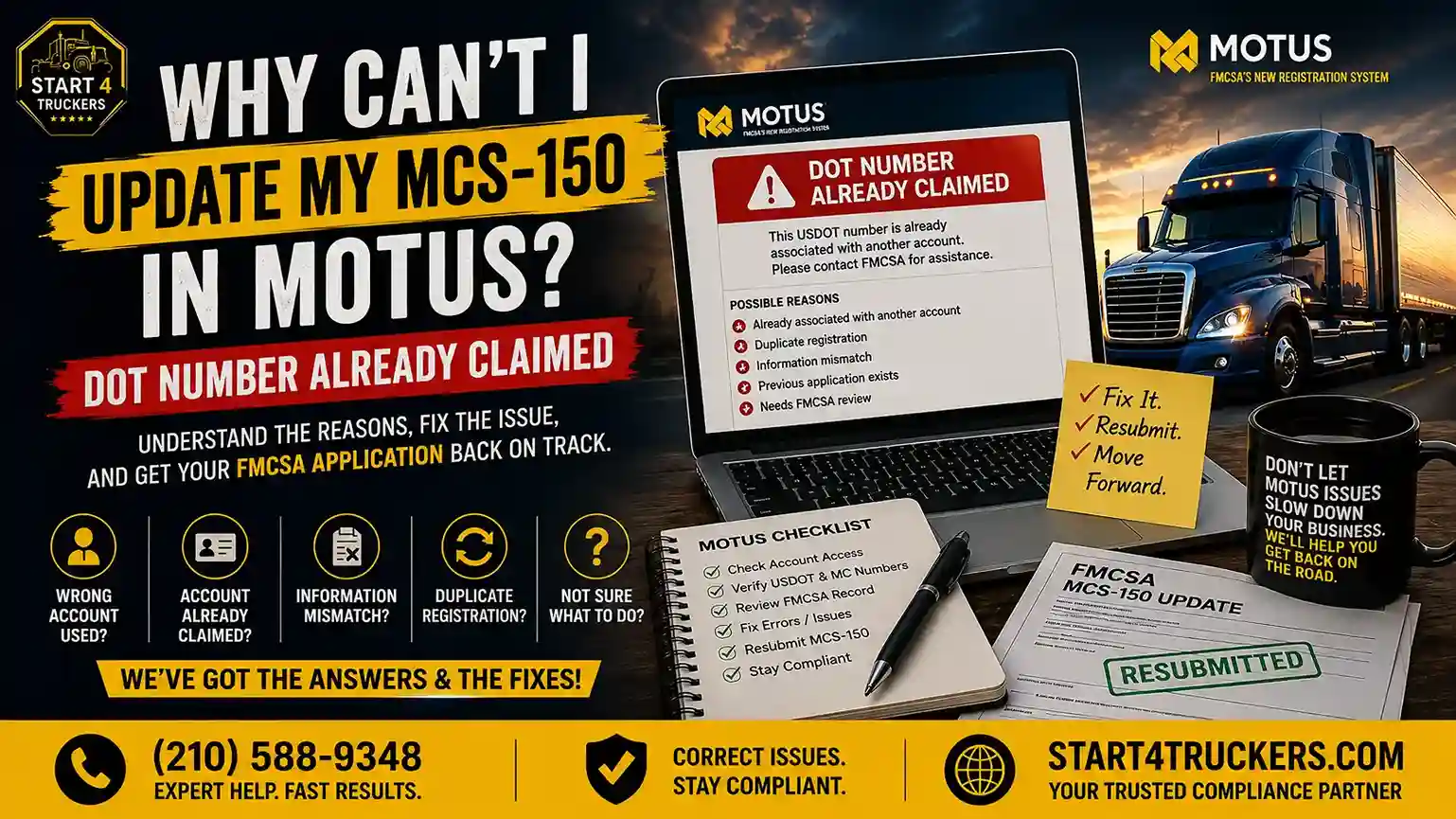
You log in to Motus to file your MCS-150 update, and the button you need is not there. Or Motus says your USDOT number is already claimed. Either way, you can’t move forward.
Start by checking access to the company account linked to your USDOT record. An unclaimed record, a different account association, an incorrect account role or incomplete verification can prevent you from reaching the update. A missing button alone does not tell you which problem you have.
This guide helps you narrow down a blocked MCS-150 update in Motus and prepare an FMCSA support request when needed. If you already have access and only need the filing instructions, use our MCS-150 biennial update in Motus guide.
Why Motus Blocks Your MCS-150 Update
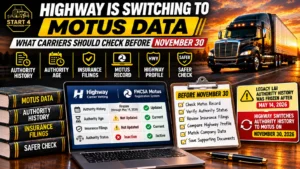
Motus launched on May 19, 2026, replacing the FMCSA Portal’s registration functionality. The legacy Portal remains operational, but its registration options were permanently disabled beginning May 14, 2026.
Each existing USDOT number now has to be “claimed” by the company’s Company Official. Claiming links the USDOT record to a Motus company account and brings in your existing company data.
FMCSA instructs existing registrants to use the same Login.gov email used as the Company Official in the FMCSA Portal. That is the starting point for linking an existing USDOT number. If the claim prompt does not appear, also check whether you entered the wrong account role or already have access to the company record.
An “already claimed” message indicates an existing association that needs checking. It could involve your own earlier login or another company representative. The message alone does not prove that someone stole your USDOT number.
Until your login is connected to the company account that holds the record, you can’t file an online MCS-150 update.
Match What You See to the Cause
Match the message or screen you see with the checks below. These are possible causes, not a diagnosis based on the error alone.
| What you see in Motus | Possible cause | Where to start |
| No claim pop-up, or the link option is grayed out | Login email, account role or unresolved record association | Fix 1, then the TSP-role check below |
| Your account opens as a Transportation Service Provider even though you are the carrier official | Carrier email registered in the wrong supporting-company role | Wrong TSP account role |
| “USDOT number already claimed” | Record already associated with an account | Fix 2 |
| Company record is visible, but the update is unavailable | Assigned access, incomplete certification or another account/system issue | Fix 3 |
| Identity verification fails | Document capture or identity details need checking | Fix 4 |
| Business verification fails | Company details or supporting records need review | Fix 5 |
Fix 1: Log In With the Right Login.gov Email
Check which Login.gov email you used as the Company Official in the FMCSA Portal. It may differ from the email you use for other business services. Use that existing login rather than creating another account to get around the error.
If Motus offers to link your existing USDOT number, follow the claiming process:
- Select Link USDOT Number and choose the number you want to claim.
- Enter the verification code sent to your Login.gov email.
- Sign the certification statement confirming you’re the owner, an official partner or an authorized corporate officer.
- Close the Pending Certification Notice, review your business information, and click Certify in the orange banner.
- Accept the final claiming certification.
After the claim is complete, confirm that you are viewing the correct company account. Check any remaining certification or verification notices before looking for the update action. If the action is still unavailable, continue with Fix 3.
FMCSA’s Claim a USDOT Number in Motus job aid shows each of these screens if you want to follow along.
If the prompt does not appear, check the TSP-role issue below. If your email is correct and you still cannot link the record, contact FMCSA. Its job aid directs users to support when the number or claim prompt is missing.
Do not submit a new USDOT application to work around a grayed-out link. It does not recover access to your existing record and can create a duplicate-registration problem.
Check for an Incorrect TSP Account Role
FMCSA has published a specific fix for carriers whose email was inadvertently registered as a Transportation Service Provider (TSP). This applies to an accidentally created supporting-company account, not to a legitimate filing service’s TSP account.
If that describes your situation, follow the FMCSA registration alert. It directs the affected carrier to open the TSP account settings, select the account-closure action and confirm closure. This permanently closes that TSP account; it is not an instruction to inactivate your USDOT number.
If your Login.gov email is linked to the USDOT record, Motus should then offer the claim prompt. If it does not, FMCSA asks for a ticket containing the USDOT number, the intended Company Official’s name and Login.gov email, and proof of ownership such as an IRS letter or state business-registration documents. Follow the alert for the current steps, and contact FMCSA first if you are unsure which account you have.
Fix 2: Your USDOT Number Is Already Claimed
First, check whether you already claimed the record under an earlier login. If another person may have handled it, ask:
- Former office managers, safety managers or dispatchers who handled FMCSA filings
- Business partners or co-owners
- Any compliance or filing company you have paid in the past
If an authorized company representative controls the account, ask the main account holder to review your access and send the appropriate user invitation. Follow the invitation rather than sharing a login. Regaining access as an invited user and correcting who controls the company account are separate matters; ask FMCSA for help if the account ownership is wrong.
If you cannot identify the existing association, contact FMCSA and describe what you see. Check your public carrier information for unfamiliar changes to the name, address or phone number. Report suspected unauthorized access if you find evidence of it; an “already claimed” message by itself is not proof.
A compliance company that files for you should not claim your number at all. FMCSA tells transportation service providers to create a separate supporting company account and connect to your account after you’ve claimed it. If a service provider claims your record as if they were you, ask them to fix it with FMCSA.
Fix 3: You’re on the Account but Can’t File
A main account holder manages the company account and user access. Sub-account holders join by invitation and cannot manage other users’ access. Being a sub-account holder does not, on its own, explain why a particular update is unavailable. See FMCSA’s definitions of main account holders and sub-account holders.
Ask the main account holder to check that your user is associated with the correct company and has the appropriate assigned access. Review any incomplete certification or verification notices as well.
If the update still does not work, capture the exact message, the action you selected and the date and time. Send those details to FMCSA rather than assuming a role change will fix it. If the main account holder has left or cannot be reached, request guidance on restoring authorized company control.
Fix 4: Identity Verification Won’t Go Through
Motus uses identity verification with a government-issued ID and images of your face. Follow the verification screen’s accepted-document instructions. If verification fails, check for:
- Glare or blur on the ID photo
- An expired ID
- Entering your company name where Motus wants your personal legal name
- A name that doesn’t match your ID exactly, such as a missing middle name
Retake the photos in good light and use the personal legal details requested by the verification screen. If it still fails, call FMCSA at 1-800-832-5660. Follow FMCSA’s instructions before visiting an identity-verification enrollment center. In-person assistance may be an option, depending on the issue.
Fix 5: Your Business Information Doesn’t Match
Motus checks your legal business name, principal place of business, ownership details and company officials when it verifies your business. Problems show up when:
- Your legal name on FMCSA’s record doesn’t match your state LLC or corporation filing
- You moved, and your principal place of business on file is old
- Your EIN on the record doesn’t match your IRS EIN confirmation letter
- The listed company official no longer works for the company
Identify exactly what needs correcting before filing. A contact-address change, an EIN correction, a Company Official access problem and an operating-authority legal-name change may require different actions or documents. Do not assume that one online Update action handles them all.
An MCS-150 biennial update has no FMCSA filing fee. An operating-authority legal-name change generally has a $14 processing fee. Check the FMCSA registration forms and supporting-document requirements for the specific change, and confirm the current submission route with support if older instructions still refer to the Portal.
Keep the relevant state business documents and IRS EIN confirmation available. Submit the documents FMCSA requests through its official support process. They can support verification; FMCSA determines what is needed to correct the record or restore access.
Mistakes That Make It Worse
- Applying for a new USDOT number to bypass an access error. Recover the existing record instead. Check its current status separately; account access does not establish whether the number is active.
- Opening several tickets for the same problem. FMCSA asks registrants to follow up on an existing ticket instead of opening new ones.
- Sharing your Login.gov password with an employee or filing service. User profiles belong to one person. Add people through Manage Users instead.
- Clicking links in “Motus” emails you didn’t expect. Scam emails have used subject lines such as “Notice of Required Off-Cycle Update” and point to a fake “New MOTUS Portal.” Use the official Motus website. FMCSA’s fraud alerts describe these impersonation attempts.
How to Contact FMCSA When You Can’t Fix It
Use the official FMCSA ticket form, call 1-800-832-5660, or use chat from FMCSA’s contact page. As of November 13, 2026, the Contact Center lists weekday hours of 8 AM–11 PM Eastern and Saturday hours of 9 AM–4 PM Eastern. Check the page for changes before calling.
The Contact FMCSA link inside Motus also provides support options. For an access ticket, have these details ready:
- USDOT number and MC number, if you have one
- Legal business name and EIN
- The Login.gov email you want connected as Company Official
- Screenshots of the exact error, without passwords or verification codes
- Date and time of the attempted action
- Any existing ticket number
Keep your government-issued ID and applicable business-ownership documents available if FMCSA requests them. Its TSP-role alert specifically identifies an IRS letter or other business-registration proof as examples. The documents needed can vary with the request.
Describe the problem and the action you need help with. For example:
I am the owner of [legal business name], USDOT [number]. I cannot claim our USDOT number in Motus. [Describe what you see, such as: “Motus says the number is already claimed, and I don’t know who claimed it.”] Please advise how to restore authorized access for our Company Official using [email]. I can provide identity and business-ownership documents through your requested process.
Save your ticket number. If FMCSA asks for documents, reply on that same ticket.
Is Your MCS-150 Update Now Late?
As of November 13, 2026, FMCSA’s published notice provides temporary biennial-update enforcement relief for registrants whose updates were due on or after June 1, 2026. The notice says affected USDOT numbers will not be inactivated for that missed biennial update and that additional filing time will be provided.
This relief does not establish that your record is active or protect it from inactivation for unrelated reasons. Check your actual carrier status and any notices from FMCSA.
This doesn’t apply to updates that were due before June 1, 2026. If that’s you, tell FMCSA in your ticket. To work out your own due date, see what Form MCS-150 is and when you need to file it. For the filing steps once you’re in, see our MCS-150 biennial update in Motus guide.
Continue resolving the access problem even if the temporary relief covers your deadline. The notice does not restore account access or complete the update for you.
FMCSA posts the current status on its Temporary Suspension of the Biennial Update Requirement page. Check it before you assume a deadline has passed.
Old MCS-150 Update Portal and Login Links No Longer Work
If an old MCS-150 update online login bookmark takes you to the FMCSA Portal, use Motus for registration updates instead. The Portal’s registration options were disabled on May 14, 2026; other Portal functions did not all disappear at launch.
For the current MCS-150 update login, open motus.dot.gov and sign in with Login.gov. FMCSA says a USDOT PIN is not required to create a Motus company account. A PIN does not replace the account-access and verification steps.
What to Do After Motus Access Is Restored
Confirm that the company name and USDOT number match the record you intend to update. Resolve any remaining certification notices, then use the available update action for your filing. If it remains unavailable, attach the exact message to your existing support ticket.
For the complete filing workflow, follow the separate MCS-150 biennial update guide. Save the submission confirmation and check that the requested changes are reflected in the record. If the issue is an inactive registration or revoked authority rather than an update, use our Motus reactivation guide instead.
Can You File a Paper MCS-150 Form Instead?
FMCSA’s registration modernization FAQs say it continues accepting paper-based registration forms after Motus launch, with manual review that can take longer than an online transaction. Ask support which submission route and documents apply to your update if account access remains unresolved.
Use the current MCS-150 form supplied by FMCSA. Complete and sign the required fields, and tell support about any recent online submission so the requests can be reviewed together. Keep a copy of what you submit.
Paper forms and paper payments are different. FMCSA’s move to electronic-only payments does not mean all paper forms were eliminated. An MCS-150 biennial update itself has no government filing fee.
A manual record update does not automatically restore Motus access. Continue the account-recovery process for future online changes.
How Start4Truckers.com Can Help
We can help you prepare the information and documents needed to resolve access issues and assist with authorised filings once your account is properly connected. Here’s what we can do:
- Review your FMCSA record and find mismatches before you file
- Help you gather the documents FMCSA asks for in a claim ticket
- Prepare your MCS-150 update and coordinate the filing once your access is set up
Frequently Asked Questions
Why can’t I update my MCS-150 in Motus?
Check whether you have access to the company account linked to your USDOT record. Possible causes include an unclaimed record, another account association, an incorrect TSP role, incomplete verification or an assigned-access issue. If those checks do not explain the error, contact FMCSA.
What does “DOT number already claimed” mean in Motus?
The record already has an account association that needs checking. It may be your own earlier account or another company representative’s account. An authorized main account holder may be able to invite you; ask FMCSA to investigate if the association or account control is wrong.
Can I update my MCS-150 online without claiming my USDOT number?
The existing USDOT record must be linked to the appropriate company account. You do not need to claim it personally again if an authorized main account holder has already claimed it and given you suitable access. If online access cannot be restored, ask FMCSA about submitting the current form through its support process.
Should I apply for a new USDOT number if I can’t claim mine?
Do not apply for another number simply to bypass a claim error. Recover access to the existing record and check its active or inactive status separately. An access problem does not tell you whether the registration is active.
Can my filing service claim the USDOT number for me?
No. FMCSA tells service providers to use a supporting company account and connect to yours after you claim it.
Will FMCSA deactivate my USDOT number while I’m stuck?
The published relief covers inactivation for missed biennial updates due on or after June 1, 2026. It does not cover every reason for inactivation. If your update was due earlier, or your record already shows inactive, contact FMCSA and check its current notice.
Where is the MCS-150 update login now?
At motus.dot.gov, signing in with Login.gov. The old FMCSA Portal no longer handles registration updates.
Need Help Getting Unstuck?
If Motus has your MCS-150 update locked, we can review your record, help you prepare what FMCSA needs, and handle the filing once your access is restored. Get DOT biennial update assistance or call (210) 588-9348.